Does Todoist Have a Calendar View: Ultimate Guide to Scheduling
Are you tired of juggling multiple apps just to keep track of your tasks and calendar? If you use Todoist, you might be wondering: does Todoist have a calendar view that lets you see your schedule at a glance?
Imagine having your to-do list and calendar combined in one place, helping you plan your day with clarity and ease. Good news—Todoist does offer a calendar view, but it comes with some conditions and cool features you’ll want to know about. You’ll discover how Todoist’s calendar view works, what you need to access it, and how it can transform the way you organize your tasks and time. Whether you want to see your upcoming week, sync with Google Calendar, or customize your schedule, you’ll find the answers here. Ready to simplify your planning and never miss a deadline again? Let’s dive in. If you’re eager to explore Todoist’s powerful features right away, check it out here: Todoist.
Credit: www.todoist.com
Introduction To Todoist’s Calendar View
Todoist offers a powerful way to organize your tasks visually. The calendar view helps users see their schedule at a glance. It combines task management with time management. This section explains how Todoist’s calendar view works and its role in task planning.
Overview Of Todoist And Its Scheduling Capabilities
Todoist is a popular to-do list app used by over 50 million people worldwide. It simplifies work and life by helping users track tasks clearly.
Key scheduling features include:
- Adding due dates and times to tasks
- Setting recurring tasks easily
- Prioritizing tasks with labels and filters
- Syncing tasks across devices
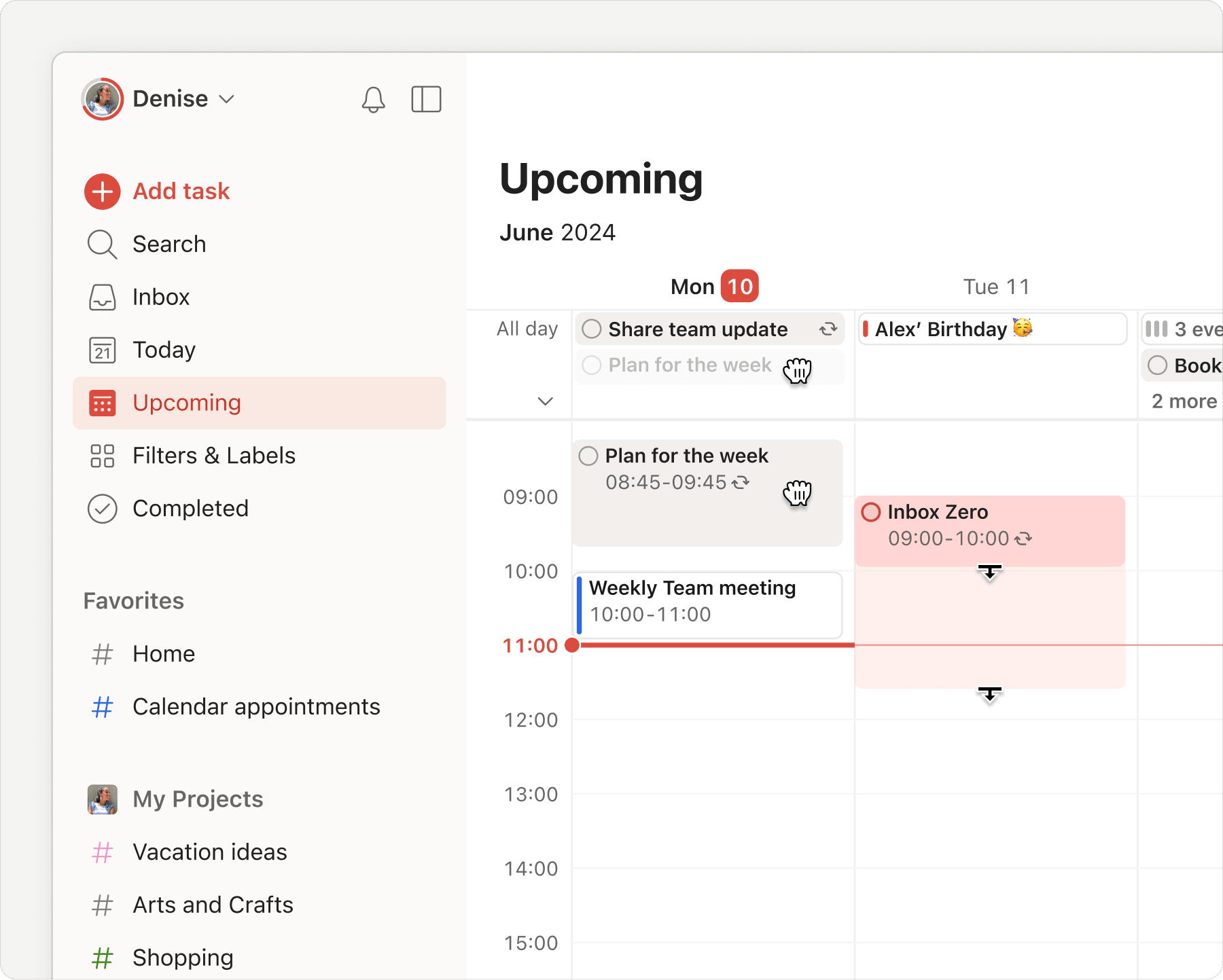
Users with Todoist Pro or Business plans access the Upcoming view, which acts as a calendar layout. This view shows tasks sorted by date, making it easier to plan weeks and months ahead.
Purpose Of The Calendar View In Task Management
The calendar view in Todoist gives a visual timeline of all scheduled tasks. It helps users:
- Track deadlines quickly
- Manage time blocks for work and personal tasks
- See future recurring tasks or hide them as needed
- Balance workload by day, week, or month
This view reduces the chance of missing important tasks by showing them on a calendar grid. Users can also sync Todoist with external calendars, like Google Calendar, for better integration.
| Feature | Benefit |
|---|---|
| Upcoming View | Displays tasks by date in a calendar format |
| Recurring Task Display | Option to show or hide future occurrences |
| Calendar Sync | Syncs tasks as events in external calendars |
Overall, Todoist’s calendar view is essential for clear, organized task scheduling. It supports better focus and productivity by offering a simple, visual task timeline.
Accessing Todoist’s Calendar View
Todoist offers a calendar view that helps users organize tasks visually. It makes tracking deadlines and planning simpler. The calendar layout is part of the Upcoming view, where tasks appear by date.
This section explains how to access and customize the calendar view effectively. It covers availability, navigation steps, and task visibility options.
Availability Of Calendar View In Todoist Pro And Business Plans
The calendar view is available only for users subscribed to Todoist Pro or Business plans. Free users do not have access to this feature.
These plans unlock the Upcoming view with a calendar layout, allowing better task management by date.
| Plan | Calendar View Access |
|---|---|
| Free | No |
| Pro | Yes |
| Business | Yes |
How To Navigate To The Upcoming View With Calendar Layout
Follow these simple steps to open the calendar layout in Todoist:
- Open the Todoist web app or desktop app.
- Click on the Upcoming tab in the left sidebar.
- The view displays tasks sorted by date in a calendar format.
This view shows tasks for the coming days and weeks. It helps plan work visually and stay organized.
Customizing Task Visibility: Showing Or Hiding Future Recurrences
In the Upcoming calendar view, users can control how recurring tasks appear.
To show or hide future occurrences of recurring tasks:
- Look for the Display button at the top-right of the calendar.
- Click it to toggle visibility of all future recurrences.
This feature helps focus only on the tasks needed now or see all future repeats. It improves clarity and reduces clutter.
Key Features Of Todoist’s Calendar Integration
Todoist offers a robust calendar integration that helps users organize tasks visually. This integration connects your task list with popular calendar apps, making task management clearer and more efficient. It allows for smooth syncing, time-blocking, and easy control over calendar settings. These features support better planning and time management in one place.
Syncing Todoist Tasks With External Calendars
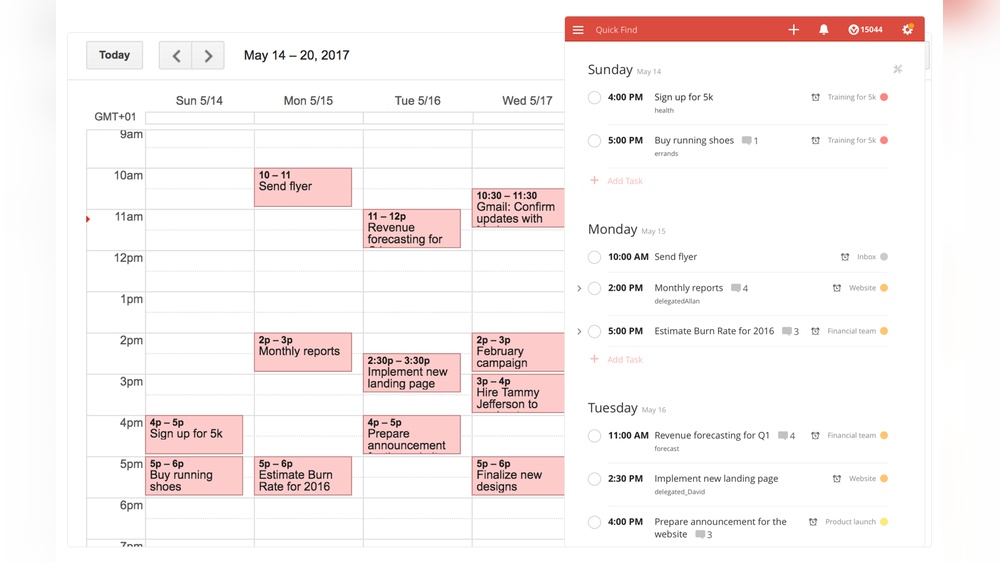
Todoist lets you sync tasks with external calendars like Google Calendar, Outlook, and Apple Calendar. This sync creates a new calendar named “Todoist” in your chosen calendar app. Tasks with due dates and times show up as events.
- Two-way sync keeps tasks and calendar events updated.
- Changes in Todoist appear in the calendar and vice versa.
- Supports recurring tasks with future occurrences displayed.
This syncing helps users see all their tasks alongside meetings and appointments. It simplifies daily planning by combining tasks and events in one calendar view.
Benefits Of Time-blocked Task Events In Your Calendar
Tasks with set times become time-blocked events in your calendar. This feature offers clear benefits:
- Visual time allocation: Shows how long tasks take.
- Better focus: Dedicated slots reduce multitasking.
- Improved planning: Helps avoid overbooking your day.
Time-blocking turns your to-do list into a workable schedule. It boosts productivity by making tasks visible as fixed events in your daily calendar.
Managing Calendar Sync Settings Within Todoist
Todoist provides easy-to-use settings to control calendar sync. You access these via:
- Click your avatar in the top-left corner of Todoist.
- Select Settings.
- Go to the Calendars tab.
Here, you can toggle calendar sync on or off. You also decide if you want to show or hide future occurrences of recurring tasks. These controls let you customize how tasks appear in your calendar app.
| Setting | Description |
|---|---|
| Sync tasks to calendar | Enable to add time-blocked tasks as calendar events. |
| Show future occurrences | Display or hide upcoming repeats of recurring tasks. |
These options make calendar integration flexible and tailored to your workflow.
Customizing Your Calendar Experience With Todoist
Todoist offers a flexible calendar experience that helps you organize tasks clearly and efficiently. The calendar view is available in the Upcoming section for Pro and Business users. You can tailor this view to fit your personal workflow and style. Custom options let you see your tasks by day, week, or month. You can also adjust how the calendar looks and use colors to keep tasks organized.
Adjusting Calendar Views: Day, Week, Month, And Schedule
In the Upcoming view, switching between Day, Week, Month, and Schedule views is easy. Just click the view selector at the top right of the calendar.
- Day view shows tasks for a single day, perfect for detailed planning.
- Week view displays your tasks for the entire week, helping with short-term goals.
- Month view gives a broad overview of deadlines and events.
- Schedule view arranges tasks in a continuous timeline for quick scanning.
This flexibility lets you focus on your work at different levels of detail.
Personalizing Display Options: Weekends, Start Day, And More
You can customize the calendar display to suit your needs. Options include:
| Option | Description |
|---|---|
| Show or Hide Weekends | Choose to display weekends or keep the calendar focused on workdays only. |
| Start Day of the Week | Select which day your week begins, such as Sunday or Monday. |
| Display Future Occurrences | Show or hide recurring tasks in the calendar for clearer focus. |
These settings allow you to create a view that matches your schedule and priorities.
Using Color Coding And Task Categorization For Better Clarity
Todoist lets you assign colors and categories to tasks. This helps you quickly spot task types and priorities.
- Project Colors: Each project can have a unique color to separate tasks visually.
- Priority Levels: Color codes mark tasks by urgency, like red for high priority.
- Labels and Filters: Use labels to group related tasks and filters to focus on specific categories.
Color coding improves task clarity and makes your calendar easier to scan at a glance.
Pricing And Affordability Of Calendar Features
Todoist offers calendar views as part of its subscription plans. Access to these features depends on the plan you choose. Understanding the pricing helps decide which plan fits your needs for calendar integration and task management.
Comparison Of Free Vs Pro And Business Plan Access
| Feature | Free Plan | Pro Plan | Business Plan |
|---|---|---|---|
| Calendar (Upcoming) View | Not Available | Available | Available |
| Recurring Task Future Occurrences Display | No | Yes | Yes |
| Calendar Sync (e.g., Google Calendar) | Basic Sync | Advanced Sync with toggles | Advanced Sync + Team Sharing |
| Team Collaboration Features | Limited | Limited | Full Access |
Free users cannot use the calendar view inside Todoist. The Pro and Business plans unlock full calendar layouts and syncing options.
Value Proposition Of Upgrading For Calendar View Access
Upgrading unlocks the Upcoming view. This view shows tasks in a calendar layout. Users can toggle visibility of recurring tasks’ future dates. This helps in planning weeks clearly.
Calendar sync improves organization. You can connect Todoist with Google Calendar or others. This keeps your tasks and events in one place.
The Business plan adds team-focused calendar sharing. Teams see task schedules easily. It helps improve coordination.
Cost-benefit Analysis For Different User Types
- Casual users: The Free plan covers basic to-do lists. No calendar view may limit visual planning.
- Professional users: Pro plan offers calendar view and task syncing. The cost is reasonable for better task management.
- Teams and businesses: Business plan supports collaboration and shared calendars. Costs are higher but add significant value for group productivity.
The calendar features add clarity and scheduling ease. Choose plans based on how much calendar integration you need.
Pros And Cons Of Todoist’s Calendar View
Todoist offers a calendar view feature that helps users manage tasks and schedules visually. This feature has distinct advantages but also some limitations. Understanding these pros and cons can help decide if Todoist’s calendar view fits your workflow.
Advantages: Enhanced Scheduling And Task Management
Todoist’s calendar view improves task organization by displaying upcoming tasks on a timeline. Users can see their workload across days or weeks, which aids in better planning.
- Visual timeline: Tasks appear in a clear, date-based layout.
- Upcoming view: Shows all scheduled tasks and recurring events.
- Task control: Users can toggle visibility of future recurring tasks.
- Integration: Syncs with external calendars like Google Calendar for unified scheduling.
This visual approach reduces missed deadlines and improves daily productivity.
Limitations: Features Restricted To Paid Plans
The calendar view is not available on Todoist’s free plan. It requires a subscription to Todoist Pro or Business. This restriction limits access for users on a budget.
| Feature | Free Plan | Pro/Business Plan |
|---|---|---|
| Calendar View (Upcoming) | Not available | Available |
| Recurring Task Visibility Control | Not available | Available |
| Calendar Sync (Google, Outlook) | Not available | Available |
Users on free plans must rely on basic task lists without calendar visualization.
User Feedback And Real-world Usage Insights
Many users find the calendar view helpful for managing complex schedules. It offers clarity and reduces task overload.
Some users mention the calendar’s interface is simple and easy to use. It fits well with daily task management habits.
Others note the cost barrier for accessing this feature. They suggest Todoist could offer a limited calendar view for free users.
Real-world use shows the calendar view boosts planning accuracy and task completion rates.
Overall, the calendar view enhances productivity but requires a paid plan for full access.
Recommendations For Ideal Users And Use Cases
Todoist’s calendar view offers clear visual scheduling for tasks and deadlines. It suits users who want a simple way to organize their time. The calendar helps plan daily, weekly, and monthly activities. It also supports syncing with external calendars, making it flexible for various workflows.
Who Benefits Most From Todoist’s Calendar View
Users who handle many deadlines and appointments gain the most. These include:
- Professionals needing to track meetings and project deadlines.
- Students managing classes, assignments, and exams.
- Freelancers scheduling client work and personal tasks.
- Teams coordinating shared tasks and timelines (with Business plan).
The calendar view shows tasks by day or week, making it easier to spot busy periods. It also highlights recurring tasks, helping users stay consistent.
Best Scenarios For Integrating Todoist With External Calendars
Syncing Todoist with Google Calendar or Outlook works well for users who want one place for all events. Use cases include:
| Scenario | Benefit |
|---|---|
| Managing work meetings and personal appointments | View all events in a single calendar to avoid overlaps. |
| Tracking task deadlines alongside calendar events | See when tasks are due in the context of your day. |
| Sharing schedules with team members or family | Synchronize tasks and events for better coordination. |
| Planning long-term projects with multiple deadlines | Visualize timelines and adjust plans easily. |
Todoist syncs tasks as events, allowing users to edit tasks in either app. This keeps schedules up to date automatically.
Tips For Maximizing Productivity With Calendar Scheduling
- Use the Upcoming view to see all tasks and deadlines in a timeline.
- Set due dates and times for tasks to make them appear in the calendar.
- Turn on recurring tasks to keep repeating items visible in the calendar.
- Sync with external calendars to avoid double booking and manage all events.
- Block focused work time by creating calendar events for deep work sessions.
- Review your calendar daily to adjust priorities and stay on track.
Following these tips helps users get more done by combining task management with visual scheduling.

Credit: www.todoist.com
Conclusion: Is Todoist’s Calendar View Right For You?
Todoist offers a calendar view that helps organize tasks by date. This feature is available with the Pro and Business plans. It allows users to see upcoming tasks in a clear, date-based layout. Deciding if this fits your needs depends on how you prefer to visualize your schedule and manage tasks.
Summary Of Key Benefits And Considerations
- Integrated Upcoming View: Shows tasks in a calendar format within Todoist.
- Control Over Recurring Tasks: Option to show or hide future occurrences.
- Calendar Sync: Syncs tasks with external calendars like Google Calendar.
- Subscription Required: Available only for Pro and Business users.
- Customization: Limited calendar view options compared to full calendar apps.
| Feature | Benefit | Consideration |
|---|---|---|
| Upcoming View | Clear task scheduling by date | Only accessible with paid plans |
| Recurring Task Display | Manage visibility of future tasks | Requires manual toggling |
| Calendar Sync | View tasks in external calendar apps | Sync setup needed in settings |
Final Thoughts On Scheduling Efficiency With Todoist
Todoist’s calendar view helps users plan their days and weeks visually. It reduces the need to switch between apps by combining tasks and calendar in one place. The sync feature enhances flexibility by connecting Todoist with Google Calendar or others.
Users who enjoy a simple, integrated scheduler will find this feature useful. It keeps task deadlines visible alongside events. Those who want advanced calendar features might need a dedicated calendar app.
Overall, Todoist balances task management with date-based planning well. The calendar view supports better focus and organization for many users.

Credit: www.reddit.com
Frequently Asked Questions
Is There A Calendar View In Todoist?
Yes, Todoist offers a calendar view in the Upcoming section for Pro and Business users. It shows tasks and recurring events. You can sync Todoist with external calendars like Google Calendar for enhanced scheduling and visualization.
What Is The 1/3/5 Rule In Todoist?
The 1/3/5 rule in Todoist means planning 1 big task, 3 medium tasks, and 5 small tasks daily. It boosts focus and productivity by prioritizing manageable goals.
How Do I Add A Calendar To Todoist?
Open Todoist, click your avatar, select Settings, then Calendars tab. Toggle on “Sync tasks to calendar” to add a Todoist calendar.
How To Customize Calendar View?
To customize calendar view, select Day, Week, Month, or Schedule from the view options. Adjust settings like colors, weekends, and start day. Use keyboard shortcuts for quick switching. Manage and create custom views in Outlook or use plugins for deeper customization on web calendars.
Conclusion
Todoist offers a calendar view for Pro and Business users. The Upcoming view shows tasks in a clear calendar layout. You can choose to display or hide recurring tasks easily. Syncing Todoist with external calendars like Google or Outlook is also possible. This helps keep all your plans in one place. The calendar view makes task management simple and visual. Explore Todoist’s features to organize your time better. Try Todoist today by visiting this link.