Clickup Vs Asana: Ultimate Comparison for Project Success
Choosing the right project management tool can make or break your team’s productivity. If you’ve ever found yourself stuck between options like ClickUp and Asana, you’re not alone.
Both promise to streamline your workflow, boost collaboration, and keep your projects on track—but which one truly fits your unique needs? Whether you want powerful customization or a simple, clean interface, this comparison will help you decide. Ready to see which platform can save you time, money, and hassle? Let’s dive into the ultimate ClickUp vs Asana showdown and find out which tool will transform the way you work. If you’re curious about maximizing efficiency with an all-in-one AI-powered solution, check out ClickUp here and explore how it can replace multiple apps and keep your entire team perfectly in sync.
Credit: unito.io
Introduction To Clickup And Asana
Project management tools help teams work better together. ClickUp and Asana are two top choices. Both support team organization and task tracking. Each tool fits different project styles and team needs.
Overview Of Clickup And Asana As Project Management Tools
| Feature | ClickUp | Asana |
|---|---|---|
| Customization | Highly customizable dashboards and workflows | Clean and structured interface, less complex |
| Key Features | Whiteboards, document creation, time tracking, task automation | Workflow automation, advanced reporting, Timeline view |
| User Experience | Power users with complex needs | Easy to learn and use for quick adoption |
| Pricing | Robust free plan with unlimited users and tasks; affordable paid plans | Free plan available but limited; premium tiers with extra features |
Purpose And Importance Of Using Pm Tools For Project Success
Project management tools keep work organized and clear. They help teams:
- Track tasks and deadlines
- Communicate in one place
- Manage resources efficiently
- Visualize progress and bottlenecks
Using these tools reduces confusion and delays. Teams stay aligned and focused on goals. They make project delivery more predictable and smooth.
Key Features That Set Clickup Apart
ClickUp stands out with a rich set of features designed for teams needing more than basic project management. Its flexibility and built-in tools allow users to tailor the platform deeply. This customization helps teams manage complex projects without relying on many separate apps.
Deep Customization And Custom Workflows
ClickUp offers highly customizable dashboards and workflows. Users can create unique task views and statuses that fit their exact needs. This flexibility supports different team styles and project types.
- Build custom task statuses beyond simple “to-do” and “done”
- Create multiple views like list, board, and calendar for tasks
- Design dashboards with widgets showing key project data
- Set automations to streamline repetitive tasks
These features make ClickUp suitable for power users who want full control over their work management system.
Native Whiteboards, Documents, And Time Tracking
ClickUp integrates several tools within one platform, reducing the need for separate apps.
| Feature | Description | Benefit |
|---|---|---|
| Whiteboards | Visual collaboration tool for brainstorming and planning | Teams visualize ideas and workflows in real time |
| Documents | Create and share docs inside ClickUp without external tools | Keeps project info centralized and easy to access |
| Time Tracking | Built-in timer to log work hours on tasks | Helps with accurate project billing and productivity analysis |
Integration Capabilities With Platforms Like Zapier
ClickUp connects with many apps through native integrations and Zapier. This capability expands its functionality greatly.
- Automate workflows between ClickUp and other tools
- Sync data with communication apps, CRMs, and calendars
- Reduce manual work by linking task updates across platforms
These integrations help teams keep all their tools working smoothly together, saving time and avoiding errors.
Unique Features That Make Asana Stand Out
Asana focuses on simplicity and ease of use, making project management accessible for all team members. Its design encourages quick adoption and smooth collaboration. The platform offers powerful automation tools and detailed reporting to streamline workflows. Specialized views like the Timeline help teams track progress visually and stay on schedule.
Simplicity And Intuitive User Interface For Rapid Adoption
Asana’s clean and structured interface reduces confusion for new users. The design uses clear menus and logical layouts. This helps teams start managing tasks without a steep learning curve.
Key aspects include:
- Minimal clutter for focused task management
- Easy navigation between projects and tasks
- Clear task creation and assignment steps
Teams can onboard members quickly and keep everyone aligned with minimal training.
Advanced Workflow Automation And Reporting
Automation in Asana saves time by reducing manual work. Users can create custom rules to automate task assignments, status updates, and notifications.
| Automation Features | Benefits |
|---|---|
| Rule-based triggers | Automatically move tasks based on status changes |
| Custom notifications | Keep team members informed without extra effort |
| Task dependencies | Ensure tasks follow the correct order |
Reporting tools provide insights on project progress, workload, and deadlines. These reports help managers make informed decisions and adjust plans effectively.
Specialized Views Such As Timeline For Project Tracking
The Timeline view gives a visual roadmap of project tasks and deadlines. It shows task durations, dependencies, and milestones on a horizontal calendar.
- Drag-and-drop interface to adjust schedules easily
- Identify overlaps and bottlenecks quickly
- Visualize team workload and project phases
Other views like List and Board complement Timeline, offering flexible options for different workflows.
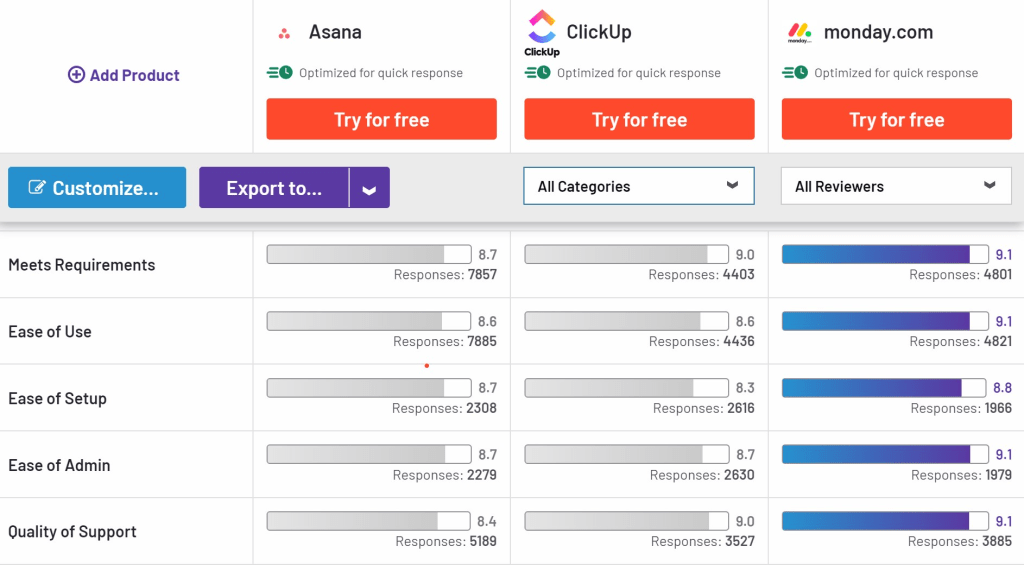
Credit: monday.com
Pricing And Affordability Breakdown
Choosing the right project management tool depends on pricing and value. Understanding costs helps teams decide which platform fits their budget and needs. ClickUp and Asana offer different plans with varied features. This section compares their pricing structures and affordability.
Clickup’s Cost-effective Plans With Robust Free Tier
ClickUp provides a free plan that supports unlimited users and tasks. This makes it ideal for startups and small teams with tight budgets.
Paid plans focus on affordability and flexibility:
| Plan | Price (per user/month) | Key Features |
|---|---|---|
| Free | $0 | Unlimited users, tasks, and projects |
| Unlimited | $5 | Unlimited storage, integrations, dashboards |
| Business | $12 | Advanced automation, goals, time tracking |
ClickUp’s plans suit teams needing a wide range of features without high costs.
Asana’s Premium Pricing And Support Options
Asana offers a free tier but with limited features and user counts. Its paid plans target teams requiring more structure and support.
| Plan | Price (per user/month) | Key Features |
|---|---|---|
| Basic (Free) | $0 | Up to 15 users, basic task management |
| Premium | $10.99 | Timeline, reporting, unlimited dashboards |
| Business | $24.99 | Advanced integrations, goals, portfolios |
Asana’s pricing is higher but includes dedicated support and advanced reporting.
Value Comparison Based On Features And Team Needs
Comparing value means weighing costs against features and team size.
- ClickUp suits teams needing customization and many built-in tools at a lower price.
- Asana works well for teams wanting simple workflows and better support.
Small or budget-conscious teams benefit from ClickUp’s free and low-cost plans.
Teams prioritizing ease of use and premium support might prefer Asana despite higher costs.
| Criteria | ClickUp | Asana |
|---|---|---|
| Free Plan | Unlimited users & tasks | Up to 15 users, limited features |
| Starting Price | $5/user/month | $10.99/user/month |
| Best For | Customization, budget teams | Ease of use, support |
Pros And Cons Based On Real-world Usage
Choosing between ClickUp and Asana depends on real-world team needs and workflows. Each tool has unique strengths and weaknesses that affect daily project management. Understanding these pros and cons helps teams select the right platform for their tasks and collaboration style.
Advantages And Challenges Of Using Clickup
ClickUp offers powerful customization and many built-in features. Teams can create dashboards tailored to their exact needs. The native whiteboards and document tools support creative collaboration.
- Advantages:
- Highly customizable workflows and dashboards
- Comprehensive time tracking built-in
- Integration with automation tools like Zapier
- Robust free plan with unlimited users and tasks
- Affordable premium plans
- Challenges:
- Complexity may overwhelm new users
- Steeper learning curve slows early adoption
- Some features can feel cluttered or too detailed
Benefits And Limitations Of Asana In Various Scenarios
Asana shines with its simple and clean interface. It suits teams that want quick setup and straightforward project tracking. Its workflow automation and reporting help keep projects on schedule.
- Benefits:
- Intuitive and easy-to-learn user interface
- Fast team onboarding and adoption
- Strong automation and timeline views
- Clear task and project organization
- Limitations:
- Less customization compared to ClickUp
- Free plan has limited features and users
- May require additional tools for complex workflows
Impact Of Learning Curve On Team Adoption And Efficiency
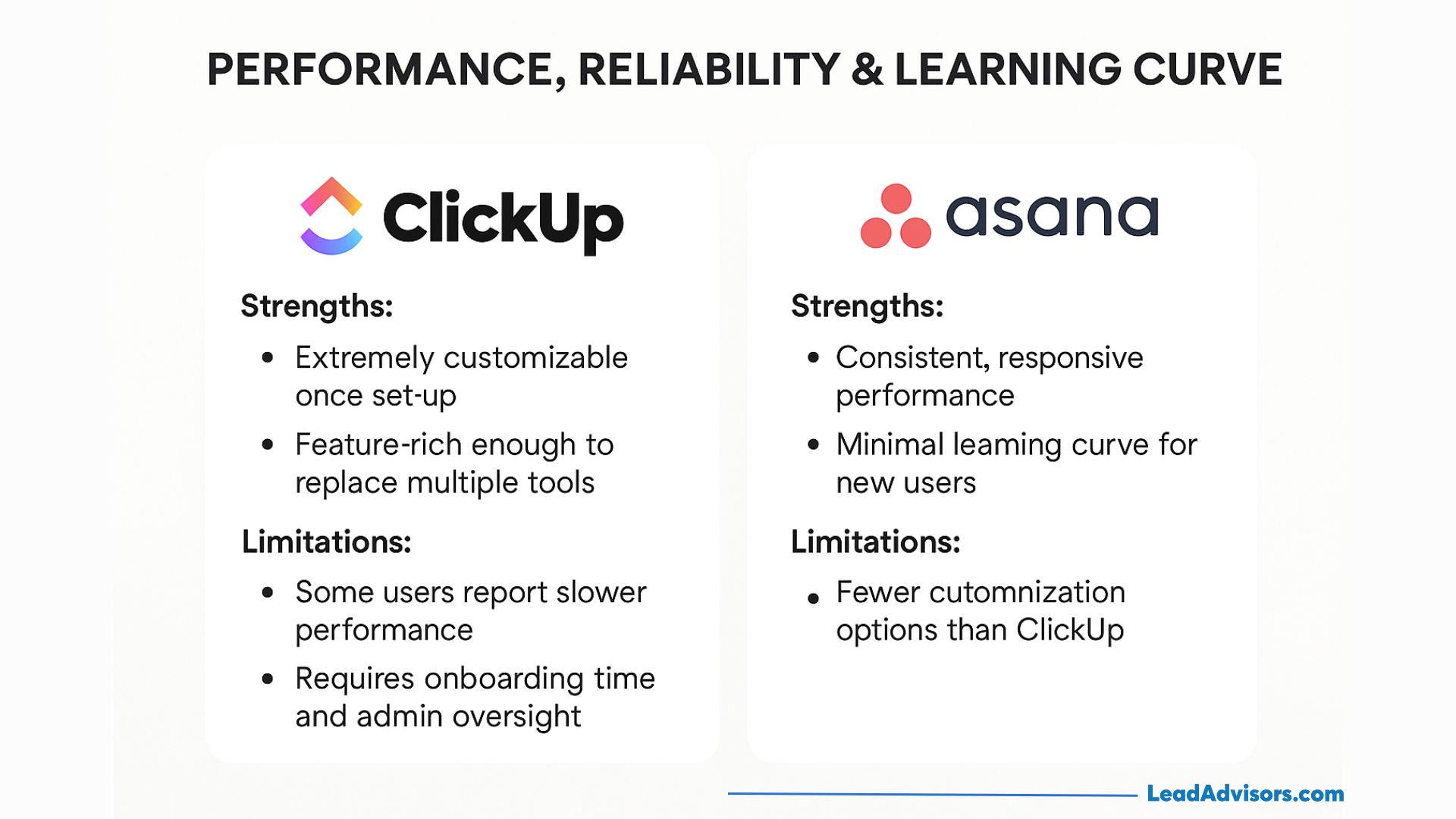
The learning curve plays a major role in team efficiency. ClickUp’s rich features need more time to master. Teams may face slower adoption but gain powerful tools later.
Asana’s simpler design lets teams start fast. Less training means quicker productivity. Teams with less technical skill benefit from Asana’s ease.
| Aspect | ClickUp | Asana |
|---|---|---|
| Learning Time | Longer due to many features | Short, intuitive onboarding |
| Team Efficiency | Improves after mastering tools | High from the start |
| Suitability | Power users and complex projects | Simple workflows and smaller teams |
Credit: leadadvisors.com
Ideal Users And Use Case Recommendations
Choosing the right project management tool depends on team needs and workflow complexity. ClickUp and Asana serve different user types and project styles. Understanding who benefits most from each helps teams work efficiently.
Best Fit For Clickup: Power Users And Teams Requiring Customization
ClickUp excels with teams needing deep customization and all-in-one features. It suits power users who want to tailor dashboards, workflows, and automation extensively.
- Highly customizable dashboards and task views
- Native whiteboards and document tools for creative collaboration
- Comprehensive time tracking and task automation integrations
- Robust free plan supporting unlimited users and tasks
- Affordable pricing for premium plans
Teams managing complex projects benefit from ClickUp’s flexibility. Users who want to replace multiple apps with one platform find it ideal.
Best Fit For Asana: Teams Prioritizing Simplicity And Structured Workflows
Asana suits teams valuing simplicity and clear structure. It offers an intuitive interface that helps users adopt the tool quickly.
- Clean, easy-to-navigate design
- Strong workflow automation with minimal setup
- Advanced reporting and timeline views for project tracking
- Fast onboarding for new team members
This tool fits teams focused on straightforward project tracking and collaboration without heavy customization.
Project Types And Team Sizes Suitable For Each Tool
| Aspect | ClickUp | Asana |
|---|---|---|
| Project Complexity | Complex, multi-layered projects with diverse workflows | Simple to moderately complex projects with structured steps |
| Team Size | Small to large teams; supports unlimited users on free plan | Small to medium teams; easy for teams scaling up |
| Industry Use | Tech, marketing, product development, and creative teams | Marketing, sales, HR, and operational teams |
| Workflow Needs | Highly customizable workflows, integrations, and automation | Predefined workflows with simple automation and reporting |
Teams choosing between ClickUp and Asana should evaluate project complexity and desired customization level. ClickUp fits those needing more control. Asana suits teams wanting ease and speed.
Case Studies And Practical Insights
Exploring real-world examples reveals how ClickUp and Asana perform in different environments. Case studies provide practical insights into their strengths and challenges. These examples help teams decide which tool suits their needs. Below, discover detailed studies and actionable tips for starting with both tools effectively.
Clickup Agency Case Study: Real-world Application And Results
An agency adopted ClickUp to manage client projects and internal tasks. They used ClickUp’s customizable dashboards and native whiteboards to streamline work. Teams tracked time directly in the app, improving billing accuracy.
Key outcomes included:
- 40% increase in task completion speed
- Reduced need for multiple apps by using ClickUp’s all-in-one features
- Improved team communication with integrated chat and comments
The agency noted that ClickUp’s deep customization helped fit their complex workflows. The free plan supported unlimited users, which was ideal for scaling teams.
Asana Restaurant Case Study: Workflow Optimization In Practice
A restaurant chain implemented Asana to organize daily operations and marketing campaigns. The team appreciated Asana’s clean interface and easy onboarding process. They used the Timeline view to schedule promotional events.
Results included:
| Challenge | Asana Solution | Impact |
|---|---|---|
| Managing shift schedules | Task assignments with due dates and reminders | 30% fewer scheduling conflicts |
| Coordinating marketing campaigns | Timeline and automation for task follow-ups | Improved project visibility and on-time delivery |
The restaurant praised Asana’s simplicity, which helped staff adopt it quickly. Workflow automation saved time on repetitive tasks.
Tips To Get Started Effectively With Both Tools
- Define clear goals before choosing your tool. Know your team size and project complexity.
- Start small. Set up basic projects or workflows first.
- Explore templates. Both platforms offer ready-made templates to save setup time.
- Train your team. Share short tutorials or run quick workshops to boost adoption.
- Use automation. Automate routine tasks to reduce manual work.
- Regularly review workflows. Adjust processes based on feedback and project needs.
Both ClickUp and Asana offer free plans, so experiment to find the best fit. Focus on your team’s workflow and communication style. This approach ensures smooth project management from day one.
Conclusion And Final Recommendations
Choosing the right project management tool shapes your team’s productivity. ClickUp and Asana serve different needs with strong features. Understanding their differences helps pick the best fit. This section summarizes key points and guides your decision for project success.
Summary Of Key Differences And Strengths
| Feature | ClickUp | Asana |
|---|---|---|
| Customization | Highly customizable dashboards and workflows | Less customizable, focuses on simplicity |
| User Interface | Feature-rich but complex | Clean, intuitive, easy to learn |
| Time Tracking | Built-in comprehensive time tracking | Limited or requires third-party tools |
| Automation | Integrates with Zapier and offers task automation | Built-in workflow automation |
| Free Plan | Unlimited users and tasks with robust features | Free plan available but with limits |
| Pricing | Generally more affordable premium plans | Premium pricing tiers with advanced features |
| Best For | Power users needing deep customization and all-in-one tool | Teams wanting simple, structured project tracking |
How To Choose Between Clickup And Asana For Your Project Success
Define your team’s priorities first. Consider these factors:
- Complexity of projects: Choose ClickUp for complex workflows.
- Ease of use: Pick Asana for quick onboarding and simple tasks.
- Budget: ClickUp offers more features for less cost.
- Customization needs: ClickUp excels in adapting to unique workflows.
- Collaboration style: Asana suits teams valuing clear, straightforward interfaces.
Test both platforms using their free plans. Notice how your team adapts. Choose the one that fits your work style and goals.
Additional Resources For Learning And Support
- ClickUp Help Center: clickup.com/help
- Asana Guide: asana.com/guide
- Video Tutorials: Search YouTube for user reviews and tutorials on both tools.
- Community Forums: Join user groups for tips and problem-solving advice.
Explore these resources to improve your skills and get support as your team grows.
Frequently Asked Questions
Why Is Clickup So Popular?
ClickUp is popular for its high customization, all-in-one features, seamless integrations, and affordability. It boosts productivity with flexible workflows and automation.
What’s Better Than Clickup?
Wrike, Basecamp, and Smartsheet offer strong alternatives to ClickUp. Each excels in specific project management needs and team collaboration.
What Is A Potential Downside Of Asana?
A potential downside of Asana is its complexity, which can overwhelm small teams and complicate simple projects.
Does Microsoft Have An Asana Equivalent?
Yes, Microsoft offers Microsoft Planner as an Asana equivalent. It supports project management, task tracking, and team collaboration efficiently.
Conclusion
Choosing between ClickUp and Asana depends on your team’s needs. ClickUp offers deep customization and many built-in tools. Asana provides a simple and clean interface for quick use. Budget and project complexity also matter. Both platforms improve teamwork and task tracking. Try ClickUp for a versatile and affordable option. Explore its features here: ClickUp. Pick the tool that fits your work style best. Your projects will stay organized and on track.