How Does Clickup Work: Ultimate Guide to Boost Productivity
Are you tired of juggling multiple apps just to keep your projects on track? Imagine having one powerful tool that replaces all those scattered software pieces—tasks, chats, documents, and more—bringing everything together in perfect harmony.
That’s exactly what ClickUp does. But how does ClickUp work to transform the way you manage your work and collaborate with your team? ClickUp combines task management, team chat, whiteboards, spreadsheets, and document editing into a single, customizable platform that adapts to your workflow. Whether you’re tracking goals, brainstorming ideas, or coordinating with your team, ClickUp keeps everyone in sync with real-time updates and easy-to-use features. Ready to discover how ClickUp can save you time, cut costs, and simplify your work life? Start exploring ClickUp now by visiting this link and see how it can work for you. Keep reading to unlock the secrets behind ClickUp’s powerful tools and learn how to make the most out of this all-in-one platform.
Credit: readylogic.co
Introduction To Clickup And Its Purpose
ClickUp is a platform designed to bring all work tools into one place. It helps teams organize tasks, communicate, and track progress easily. This central hub reduces the need to switch between multiple apps.
The platform aims to improve workplace efficiency and team collaboration. Users can manage projects, chat, edit documents, and brainstorm on whiteboards without leaving ClickUp.
What Is Clickup? An Overview Of The All-in-one Productivity Platform
ClickUp is a project management software that combines many tools into one system. It includes:
- Task management with custom workflows
- Team chat and communication
- Collaborative whiteboards for brainstorming
- Integrated spreadsheets and document editing
- Goals tracking and progress monitoring
The platform offers a highly customizable interface with drag-and-drop features. It supports teams from small tasks to complex projects. Learning resources like tutorials and forums help users master the software step-by-step.
How Clickup Enhances Workplace Efficiency And Collaboration
ClickUp improves efficiency by centralizing multiple tools. Teams no longer waste time switching apps. Communication flows smoothly with built-in chat features.
Collaboration happens in real time through shared whiteboards and documents. Progress tracking helps everyone stay on target. Custom workflows adapt to any team’s needs.
| Feature | Benefit |
|---|---|
| Task Management | Organizes work clearly and tracks completion |
| Team Chat | Speeds up communication within projects |
| Collaborative Whiteboards | Encourages creative brainstorming together |
| Spreadsheets & Docs | Supports editing and sharing in one place |
| Custom Workflows | Fits unique team processes easily |
Who Can Benefit From Using Clickup?
ClickUp suits a wide range of users, including:
- Small teams needing simple task tracking
- Large organizations managing complex projects
- Remote teams requiring strong communication tools
- Managers who want clear progress visibility
- Anyone looking to replace many apps with one
The platform grows with users. Beginners start with basic features. Advanced users customize workflows and tools over time. It fits various industries and team sizes.
Credit: help.clickup.com
Key Features That Make Clickup Unique
ClickUp combines many tools into one platform to simplify work. It helps teams stay organized, communicate, and manage projects efficiently. The software offers features that fit different work styles and needs. Below are the core features that set ClickUp apart.
Task Management: Organize And Prioritize Work Seamlessly
ClickUp’s task management system lets teams create, assign, and track tasks easily. Users can:
- Set priorities and deadlines
- Use drag-and-drop to reorder tasks
- Customize workflows to match team processes
- Track progress with status updates and notifications
This feature keeps work clear and focused, helping teams meet goals on time.
Document Collaboration: Centralize Content Creation And Sharing
ClickUp allows teams to create and edit documents together in one place. It supports:
- Real-time editing
- Comments and feedback
- Easy sharing within the team
- Version control to track changes
This central hub reduces confusion and keeps all important content accessible.
Real-time Chat And Communication Tools: Streamline Team Interaction
ClickUp includes built-in chat tools that let team members communicate quickly. Features include:
- Direct messaging and group chats
- Contextual discussions linked to tasks or projects
- Notifications to stay updated
These tools help teams stay connected and reduce email overload.
Whiteboards And Visual Tools: Foster Creativity And Planning
ClickUp provides digital whiteboards for brainstorming and visual planning. Users can:
- Draw, add notes, and create diagrams
- Collaborate live with team members
- Organize ideas visually for better understanding
Whiteboards encourage creativity and make planning sessions more productive.
Customizable Workflows: Adapt Clickup To Your Team’s Needs
Teams can tailor ClickUp workflows to fit their unique processes. Options include:
- Custom task statuses and stages
- Automations to reduce manual work
- Personalized views like lists, boards, or calendars
This flexibility helps teams work more smoothly and efficiently.
Integrated Spreadsheets: Manage Data Without Leaving The Platform
ClickUp features built-in spreadsheets that integrate with tasks and projects. Benefits include:
| Feature | Benefit |
|---|---|
| Data entry and calculations | Handle numbers and data easily inside ClickUp |
| Link spreadsheets to tasks | Keep data connected to relevant projects |
| Collaborate in real time | Work together on data sheets without extra apps |
This feature reduces switching between tools and saves time.
Navigating Clickup: How It Works Step-by-step
ClickUp organizes your work in a clear, structured way. It breaks down projects into smaller, manageable parts. This section explains how to use ClickUp effectively. Follow these steps to navigate through its key features and improve your productivity.
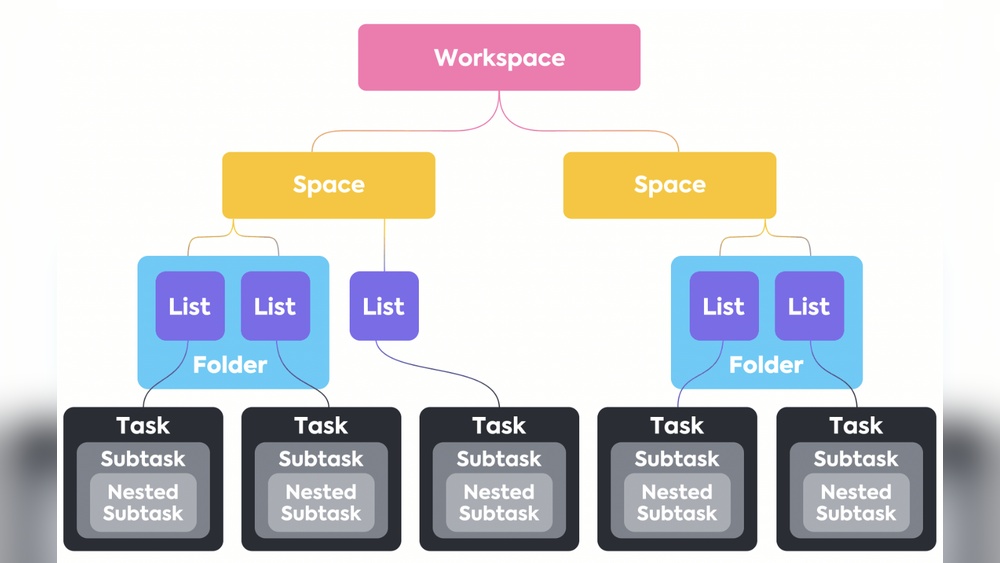
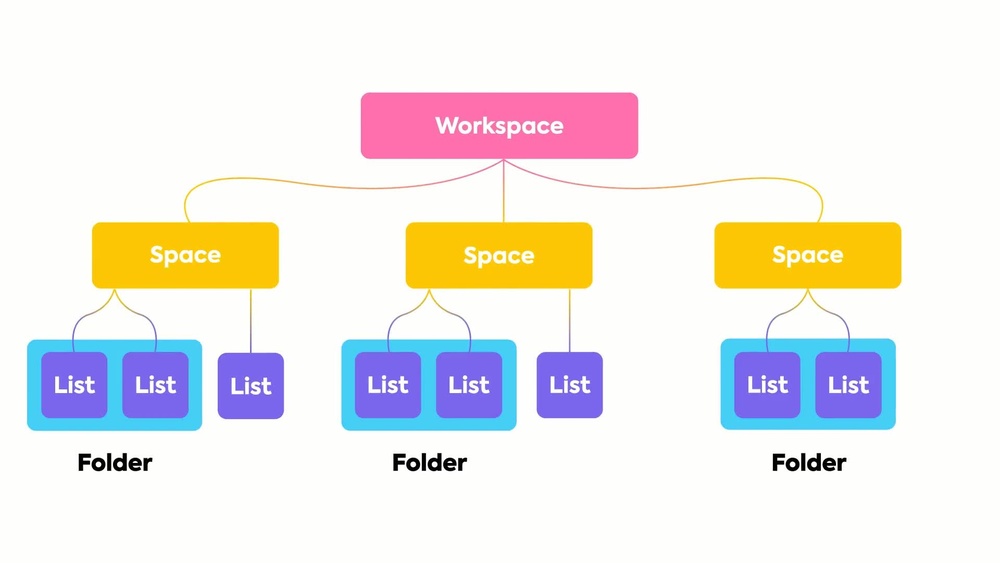
Understanding Clickup’s Hierarchy: Spaces, Folders, Lists, And Tasks
ClickUp’s structure helps keep work organized and easy to find.
- Spaces are the highest level. Each Space can represent a department, team, or big project.
- Folders live inside Spaces. They group related Lists for better order.
- Lists contain tasks. Lists help categorize work within Folders.
- Tasks are the smallest units, representing individual work items or actions.
This hierarchy makes it simple to arrange work by project or team and drill down to specific tasks quickly.
Getting Started: Creating Your First Task And Project
- Open a Space or create a new one for your project.
- Inside the Space, add a Folder if your project has multiple sections.
- Create a List within the Folder to organize your tasks.
- Click “+ Task” to add your first task. Enter a clear title and description.
- Assign the task to yourself or a team member and set a due date.
Starting with simple tasks helps you learn ClickUp step-by-step. You can add details like subtasks, attachments, or comments as you go.
Using Views And Filters To Customize Your Workspace
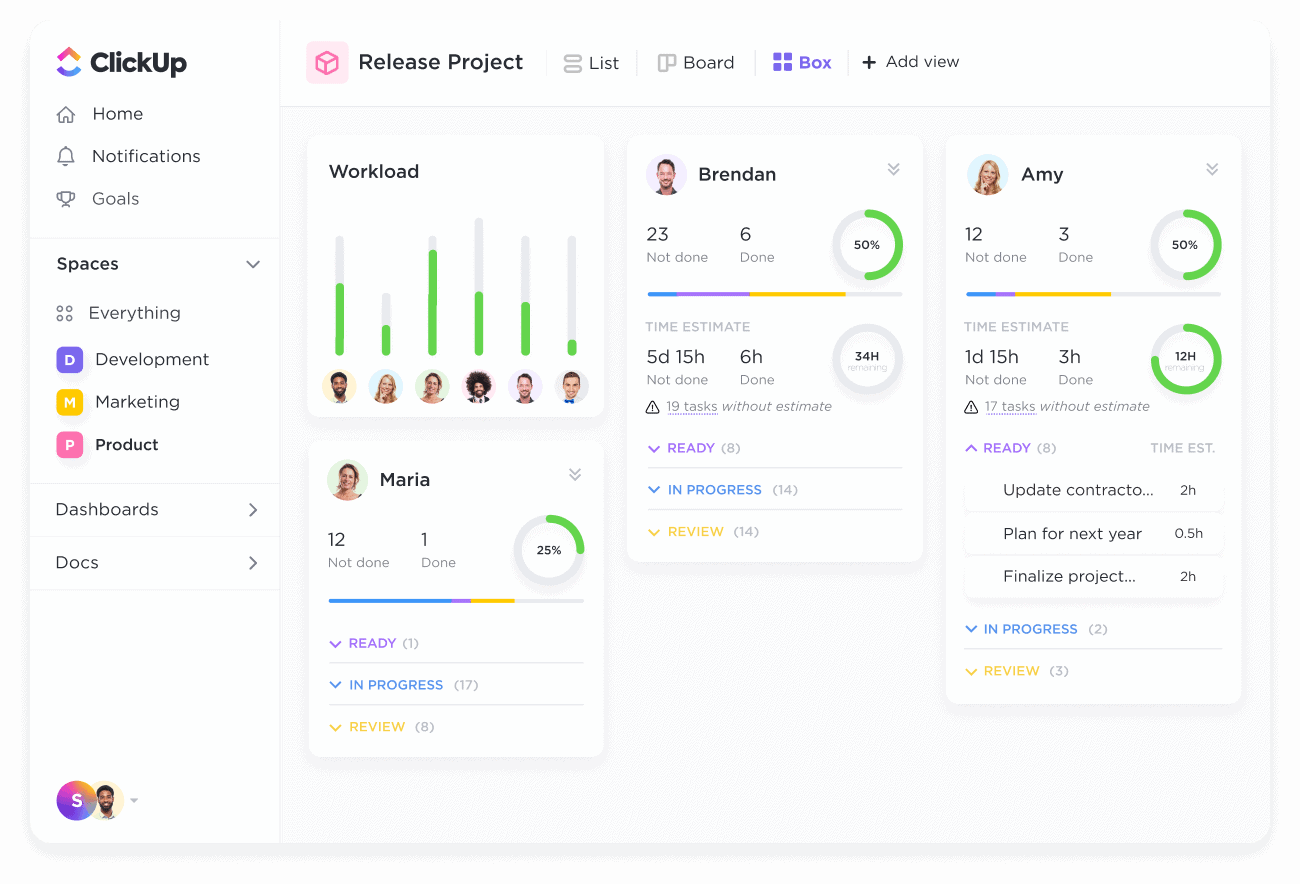
ClickUp offers multiple views to see your work in different ways. Choose the one that fits your style.
| View Type | Description |
|---|---|
| List View | Shows tasks as a simple list, easy to read and update. |
| Board View | Displays tasks as cards on a board for drag-and-drop organization. |
| Calendar View | Visualizes tasks by due date on a calendar. |
| Gantt View | Shows task timelines and dependencies for project planning. |
Filters help narrow down tasks by priority, status, or assignee. This makes it easy to focus on what matters most.
Automation And Notifications: Staying On Top Of Your Work
ClickUp automates routine actions to save time. Set rules to update task status or assign tasks automatically.
- Automatically change task status when moved to a new list.
- Send notifications for task deadlines or comments.
- Create recurring tasks for regular work.
Notifications keep you informed about updates without checking manually. Customize alerts to avoid overload and stay focused.
Tips For Managing Multiple Projects Efficiently
Handling several projects can be complex. Use these strategies to stay organized:
- Keep separate Spaces for each major project or client.
- Use Tags to link related tasks across different projects.
- Set priorities clearly to focus on urgent tasks first.
- Review progress regularly with dashboards and reports.
- Archive completed projects to reduce clutter.
Organizing work clearly helps maintain control and reduces stress when managing many tasks.

Credit: www.celoxis.com
Pricing And Affordability Breakdown
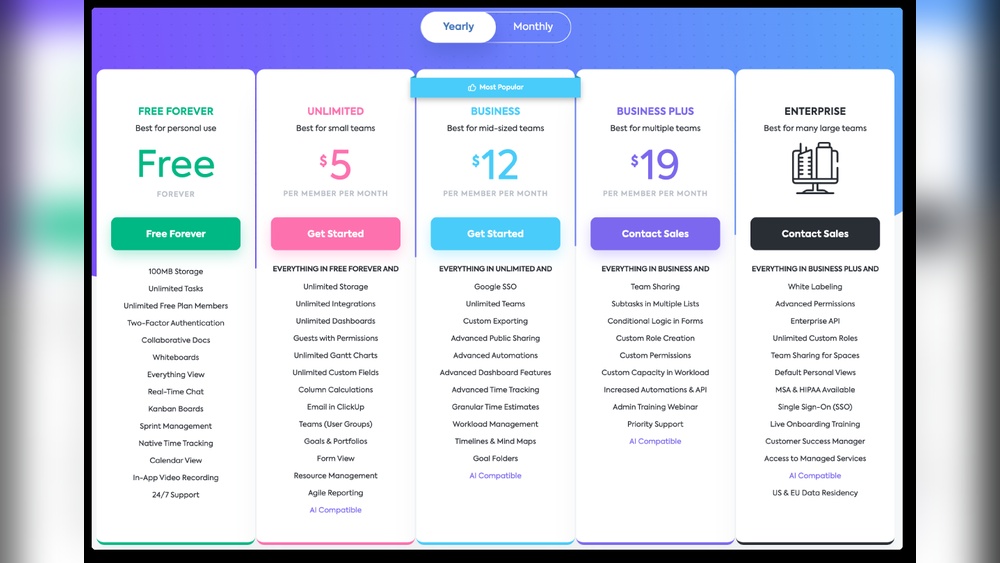
Understanding ClickUp’s pricing helps businesses choose the right plan. The platform offers a range of options from free to custom enterprise solutions. Each plan varies in features and limits. This section breaks down the costs and value to guide your decision.
Overview Of Clickup’s Free Plan: Features And Limitations
The free plan provides a solid starting point for individuals and small teams. It includes essential tools but with some restrictions.
- Task management: Unlimited tasks and users
- Views: List, board, and calendar
- Storage: Limited to 100MB
- Integrations: Limited number of app integrations
- Collaboration: Basic chat and comments
This plan suits new users or teams with simple needs. Limitations may affect growing teams or complex projects.
Paid Plans Explained: Business, Enterprise, And Custom Options
ClickUp offers paid plans with more features and fewer limits. Pricing is usually per user, per month.
| Plan | Key Features | Who It’s For |
|---|---|---|
| Business |
| Medium to large teams needing more control |
| Enterprise |
| Large organizations with specific needs |
| Custom | Tailored features and pricing based on business requirements | Businesses with unique workflows or compliance needs |
Comparing Value: What You Get For Your Investment
ClickUp combines multiple tools into one platform. Paying for a plan means access to:
- Task management with automation
- Team chat and document collaboration
- Customizable dashboards and reporting
- Strong support and training resources
Compared to buying separate apps, ClickUp can reduce overall software costs. It also improves workflow efficiency.
Is Clickup Worth The Cost For Your Business?
ClickUp fits businesses needing a central workspace for projects and communication. The free plan works well for startups or small teams.
Growing teams benefit from paid plans, which add features and storage. Large companies gain from enterprise options with custom support.
Evaluate your team size, project complexity, and budget. ClickUp offers flexibility for different business stages.
Pros And Cons Of Clickup Based On Real-world Usage
ClickUp is a powerful tool that combines many work features into one platform. This can feel complex at first. Many users find the variety of options and settings overwhelming. The key is to approach learning step-by-step. With patience and the right help, anyone can become comfortable using ClickUp.
Why Clickup Can Feel Overwhelming At First
ClickUp offers many features like task management, chat, whiteboards, and spreadsheets. This makes it a bit confusing for new users. The interface has many buttons, menus, and settings. Users may not know where to start or which features to use first.
Customizable workflows and deep settings add to the challenge. It can feel like there is too much to learn at once. This initial overwhelm is normal and common among new users.
Resources To Help You Master Clickup Quickly
ClickUp provides many resources to ease learning:
- ClickUp University: Structured courses for all skill levels.
- Tutorial Videos: Step-by-step guides on key features.
- Help Center: Articles answering common questions.
- Templates: Pre-built workflows to start fast.
Using these materials helps users learn faster and avoid confusion.
Progressive Learning: Starting Simple And Scaling Up
Begin with basic tasks like creating and managing simple to-do lists. Focus on core functions before exploring advanced features.
- Set up a basic workspace.
- Create simple tasks and assign them.
- Use team chat for communication.
- Gradually add features like goals and whiteboards.
- Customize workflows as you become comfortable.
This step-by-step approach helps build confidence and reduces frustration.
Community Support: Forums, Tutorials, And Clickup University
ClickUp has an active community ready to help users:
- Official Forums: Ask questions and share tips with other users.
- Video Tutorials: Free lessons on YouTube and ClickUp’s site.
- ClickUp University: Structured courses with quizzes and certificates.
Community support offers advice and solutions for common issues. Users can learn from others’ experiences and speed up their progress.
Learning Clickup: Overcoming The Learning Curve
ClickUp suits various users by combining many tools into one platform. It works well for those needing task management, team chat, document collaboration, and project tracking. This section highlights who benefits most from ClickUp and when other tools might fit better.
Ideal Users: Teams, Freelancers, And Large Organizations
Teams enjoy ClickUp for its seamless collaboration features. It keeps communication, tasks, and files in one place. Teams can customize workflows to match their project needs.
Freelancers find ClickUp useful to manage multiple clients and projects. The all-in-one system reduces the need for multiple apps, saving time and cost.
Large Organizations benefit from ClickUp’s scalability and advanced customization. It supports complex project structures and many users working simultaneously.
Best Scenarios: Complex Projects Requiring Collaboration And Customization
ClickUp excels with projects needing detailed task tracking and strong team collaboration. Its features like customizable workflows and integrated communication tools help manage complexity.
Use ClickUp when projects demand:
- Multiple team members coordinating tasks
- Real-time communication and document sharing
- Tracking progress with goals and milestones
- Flexible workflows tailored to specific processes
When To Consider Alternative Tools
ClickUp may be too complex for very simple projects or solo users who need minimal features. Some users prefer lighter apps for quick task lists or basic note-taking.
Consider alternatives if you need:
- Simple task management without many features
- Minimal setup with low learning curve
- Specialized software for niche tasks like accounting or design
Maximizing Productivity With Clickup In Your Workflow
Integrate ClickUp gradually to avoid overwhelm. Start with basic task management and add features over time.
Tips to boost productivity:
- Customize workflows to fit your team’s style
- Use team chat to reduce email clutter
- Leverage collaborative whiteboards for brainstorming
- Track goals and project progress regularly
- Explore tutorials and community forums for help
ClickUp’s drag-and-drop interface makes organizing tasks simple. Its unified platform keeps all work tools accessible, saving time and effort.
Specific Recommendations: Who Should Use Clickup?
ClickUp serves as a versatile platform that brings many work tools together. It helps teams stay organized and communicate better. By combining tasks, chats, documents, and more, ClickUp reduces the need for multiple apps. This unified approach saves time and keeps everyone on the same page. Users can customize their workspace to match their needs, making daily work smoother and more efficient.
The platform supports gradual learning, allowing users to start simply and grow into advanced features. This flexibility suits both small teams and large projects. ClickUp’s design encourages collaboration and clear tracking of progress. Overall, it offers a solid foundation to improve productivity and teamwork.
Summarizing Clickup’s Strengths And Areas For Improvement
| Strengths | Areas for Improvement |
|---|---|
|
|
Final Tips For Getting The Most Out Of Clickup
- Start with basic task management to build confidence
- Use templates to save time on common workflows
- Explore the chat and whiteboard features for team ideas
- Set clear goals and track progress regularly
- Take advantage of ClickUp University and tutorials
- Customize views and notifications to avoid overload
Encouragement To Explore And Customize Clickup For Your Needs
Each team works differently. ClickUp lets you tailor the platform to fit your style. Experiment with settings and tools to find what works best. Use custom workflows, fields, and dashboards to match your tasks. Adjust communication channels to keep your team connected.
Spend time exploring ClickUp’s features step-by-step. This approach helps avoid feeling overwhelmed. The more you adapt ClickUp, the easier your daily work becomes. Customization leads to better focus, less confusion, and greater results.
Frequently Asked Questions
What Is Clickup And How Does It Work?
ClickUp is a project management tool that combines tasks, docs, chat, and goals in one platform. It helps teams organize work and collaborate efficiently. Users create tasks, set priorities, track progress, and communicate within ClickUp to streamline projects and boost productivity.
Is Clickup Difficult To Learn?
ClickUp has a steep learning curve due to many features and customization options. Basic tasks feel intuitive. Practice and resources like ClickUp University make mastering it easier over time.
How To Use Clickup Step By Step?
Create a ClickUp account and log in. Set up spaces for projects. Add tasks with deadlines and assignees. Use lists, boards, or calendars to organize work. Collaborate via comments and docs. Track progress with dashboards. Customize settings to fit your workflow.
Explore ClickUp University for tutorials.
Is Clickup Really Free Forever?
Yes, ClickUp offers a free forever plan with essential features. Paid plans unlock advanced tools and higher limits.
Conclusion
ClickUp brings many tools into one simple platform. Teams can manage tasks, chat, and share ideas easily. Its drag-and-drop and customizable features fit different work styles. Users learn step by step with helpful guides and support. This makes managing projects less stressful and more organized. Try ClickUp to see how it can help your team work better. Find out more at ClickUp.