Clickup Folder Vs List: Ultimate Guide to Boost Productivity
Are you struggling to keep your projects and tasks neatly organized in ClickUp? Understanding the difference between a ClickUp Folder and a List can transform how you manage your work and save you valuable time.
While both play key roles in structuring your workspace, knowing when to use a Folder versus a List will help you stay focused and reduce overwhelm. Ready to unlock a smoother workflow and finally get a handle on your to-dos? Let’s dive into the essential differences and find out which setup fits your style best. Plus, if you want to supercharge your productivity with an all-in-one AI-powered tool that replaces multiple apps, check out ClickUp—where everything you need to organize your life and work comes together effortlessly.
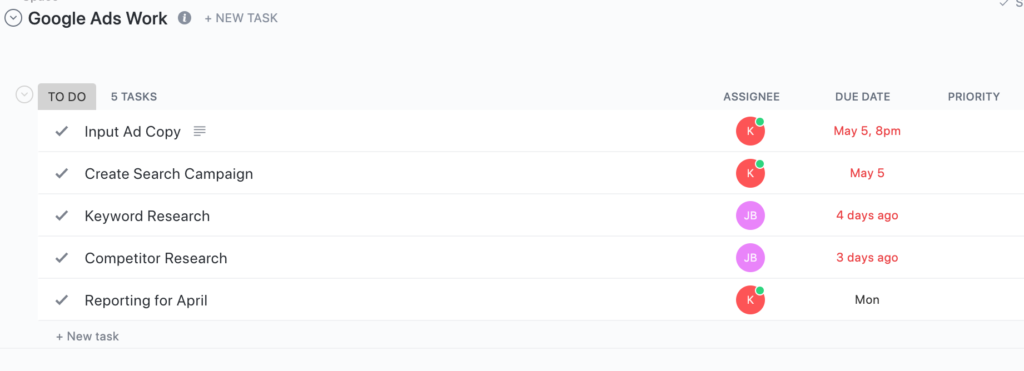
Credit: www.digitalmarketingceo.com
Introduction To Clickup Folders And Lists
ClickUp offers a clear way to organize your projects and tasks. Two key parts of its system are Folders and Lists. Understanding these helps you keep work tidy and easy to manage. This section explains what Folders and Lists are and how they fit in ClickUp’s structure.
Understanding Clickup’s Hierarchy: Spaces, Folders, And Lists
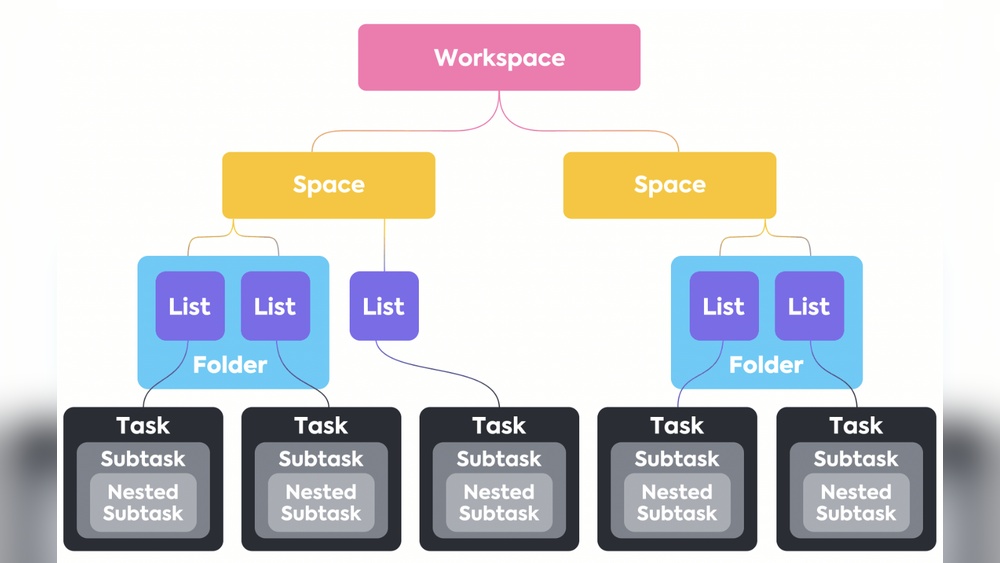
ClickUp uses a three-level hierarchy to organize work:
- Spaces: The top level. Spaces hold everything related to a team or project.
- Folders: Inside Spaces, Folders group related Lists together.
- Lists: Inside Folders or directly in Spaces, Lists hold the actual tasks.
Tasks cannot exist outside Lists. Folders cannot contain other Folders. Spaces can hold both Folders and standalone Lists.
Purpose And Role Of Folders In Clickup
Folders act as containers for multiple Lists. They help you group Lists that share a common theme or goal. For example:
- All Lists for a marketing campaign can go into one Folder.
- Different client projects can be organized into separate Folders.
Folders do not hold tasks directly. They only organize Lists. This makes your workspace less cluttered and easier to navigate.
Purpose And Role Of Lists In Clickup
Lists are where the actual work happens. They hold the tasks you need to complete. Each List can represent:
- A specific project phase
- A type of work or category
- A sprint or time period
Tasks live only inside Lists. This structure keeps tasks focused and easy to find. Lists can exist inside Folders or directly inside Spaces if you want a simpler setup.
Key Features Of Clickup Folders
ClickUp Folders organize project elements by grouping multiple lists together. They help build a clear and detailed structure within a workspace. Folders give teams a way to manage many related lists without confusion.
Folders act as containers that hold lists, but they do not hold tasks directly. This setup makes it easier to separate different parts of a project. Users can quickly find what they need and keep work organized.
Organizing Multiple Lists For Granular Structure
Folders group several lists that belong to the same category or project phase.
- Multiple Lists: Each folder can contain many lists for detailed organization.
- Clear Hierarchy: Folders sit between spaces and lists, creating a neat structure.
- No Nested Folders: Folders cannot hold other folders, keeping the setup simple.
This method helps users break down large projects into smaller, manageable parts.
Streamlining Project Management Across Teams
Folders make teamwork easier by grouping related lists in one place.
- Shared Access: Teams access all lists within a folder without searching.
- Better Collaboration: Everyone stays on the same page with clear divisions.
- Task Focus: Lists within folders focus on specific parts of the project.
Teams can assign tasks and track progress without losing context.
How Folders Reduce Clutter And Boost Focus
Folders reduce workspace clutter by grouping lists smartly.
- Less Visual Noise: Folders hide many lists under one label.
- Improved Navigation: Users find lists faster inside folders.
- Focused Work: Teams can concentrate on one folder at a time.
Folders help users avoid distractions and keep projects neat and clear.
Key Features Of Clickup Lists
ClickUp Lists play a central role in task organization. They serve as the direct container for all tasks, making them essential for managing work efficiently. Lists allow users to break down complex projects into manageable pieces. This structure helps teams and individuals track progress clearly and stay organized.
Unlike folders, which hold multiple lists, Lists directly hold tasks. This direct relationship simplifies task management and increases productivity.
Direct Task Containment And Management
Lists in ClickUp contain all tasks directly. Tasks cannot exist outside a List. This makes Lists the core place to manage and organize work items.
- Each List holds tasks related to a specific project or goal.
- Tasks are easy to find and update within their List.
- Lists provide a clear view of what needs to be done.
This feature helps users focus on tasks without losing context. Managing tasks inside Lists keeps work well-structured and accessible.
Task Breakdown With Subtasks And Checklists
ClickUp Lists support breaking tasks into smaller parts. Users can create subtasks and checklists within each task to organize work step-by-step.
- Subtasks divide a main task into actionable parts.
- Checklists help track detailed steps or items.
- Both allow better control over task progress.
Breaking tasks down reduces overwhelm and clarifies what needs to be done next.
Custom Views For Visual Task Tracking
Lists offer multiple view options to track tasks visually. Users can switch between views like List, Board (Kanban), and Calendar.
| View Type | Description | Benefits |
|---|---|---|
| List View | Displays tasks in rows with details. | Easy to scan and update tasks quickly. |
| Board View | Shows tasks as cards in columns. | Visualizes workflow and task status. |
| Calendar View | Tasks shown by due dates on a calendar. | Helps plan work over days or weeks. |
These views adapt to different work styles and improve task tracking clarity.
Pricing And Affordability Of Clickup’s Organizational Features
ClickUp offers organizational tools like Folders and Lists to help users manage tasks effectively. Understanding the pricing and affordability of these features helps users choose the right plan for their needs.
Overview Of Clickup Plans Supporting Folders And Lists
ClickUp provides several plans with different levels of access to folders and lists. Folders and Lists are supported across all plans, but some limits apply to free users.
| Plan | Folders | Lists | Tasks | Price (per user/month) |
|---|---|---|---|---|
| Free | Unlimited | Unlimited | 100 tasks | $0 |
| Unlimited | Unlimited | Unlimited | Unlimited | $5 |
| Business | Unlimited | Unlimited | Unlimited | $12 |
Folders help group multiple lists. Lists hold the actual tasks. Both are key for project structure.
Value For Money: Free Vs Paid Options
The Free plan suits small teams or personal use. It offers unlimited folders and lists but limits tasks to 100.
Paid plans remove task limits and add features like automation, integrations, and advanced reporting.
- Free plan: Good for simple projects and beginners.
- Unlimited plan: Best for growing teams needing more tasks and views.
- Business plan: Ideal for larger teams with complex workflows.
Cost-benefit Analysis For Different User Types
Different users gain different benefits based on their plan choice. Here is a simple breakdown:
- Individuals: The Free plan offers enough tools to manage personal tasks using folders and lists.
- Small teams: Unlimited plan provides unlimited tasks and enhanced features, fitting budget-friendly team work.
- Businesses: Business plan delivers advanced customization and automation for complex projects.
| User Type | Recommended Plan | Key Benefits | Cost Efficiency |
|---|---|---|---|
| Individual | Free | Unlimited folders/lists, limited tasks | High for personal use |
| Small Team | Unlimited | Unlimited tasks, integrations, automation | Good for team growth |
| Business | Business | Advanced features, customizations, reporting | Best for complex needs |
Pros And Cons Based On Real-world Usage
ClickUp offers two main ways to organize work: Folders and Lists. Both have unique strengths and drawbacks. Real users share how these tools perform in daily project management and task tracking. Understanding their advantages and challenges helps choose the best fit for your workflow.
Advantages Of Using Folders For Complex Projects
Folders group multiple Lists together, creating a clear hierarchy. This suits projects with many moving parts. Users benefit from:
- Organizing large projects with several phases or teams.
- Reducing clutter by nesting related Lists under one Folder.
- Easier navigation across various sub-projects or departments.
Folders do not hold tasks directly but simplify management by containing Lists. This structure works well for teams needing a broad overview.
Benefits Of Lists For Task-level Focus
Lists hold individual tasks and provide detailed control. Their benefits include:
- Direct access to tasks, making daily work more focused.
- Simple setup for smaller projects or solo workflows.
- Clear visibility into task progress and deadlines.
Lists allow users to concentrate on specific tasks without extra layers. This suits users who want straightforward task management.
Challenges And Potential Overwhelm With Clickup’s Complexity
ClickUp’s rich features can feel overwhelming for some users. Common challenges include:
- Confusion over when to use Folders versus Lists.
- Complex hierarchy that requires time to learn.
- Risk of clutter if too many Lists or Folders are created.
Users report needing patience to fully adapt. The tool’s depth can slow initial productivity but offers long-term rewards once mastered.
User Feedback: What Works And What Doesn’t
| Aspect | Works Well | Needs Improvement |
|---|---|---|
| Folder Use | Great for organizing large projects and teams. | Not ideal for users wanting quick task access. |
| List Use | Efficient for focused task management and small projects. | Can become cluttered without Folder structure. |
| Overall Complexity | Flexible customization and multiple views. | Steep learning curve for new users. |
Users appreciate ClickUp’s versatility but caution about initial setup time. Clear guidelines on Folder and List use improve the experience.

Credit: processdriven.co
Ideal Users And Use Cases For Folders And Lists
ClickUp offers Folders and Lists to organize tasks and projects clearly. Understanding which one to use helps teams and individuals work smarter. Both have unique strengths that fit different needs and workflows.
When To Use Folders: Teams And Large Projects
Folders serve as containers for multiple Lists, making them perfect for large projects or team collaboration. They help break down complex work into manageable parts.
- Group related Lists under one Folder for better clarity
- Manage multiple teams or departments within a single Space
- Keep projects organized by phases, clients, or product lines
- Track progress across many Lists without clutter
Folders do not hold tasks directly but organize Lists that contain tasks. Use Folders to create a clear hierarchy and avoid overwhelming your workspace.
When To Use Lists: Individual Tasks And Smaller Projects
Lists hold actual tasks and are ideal for individual use or smaller projects. They provide a focused view of what needs to be done.
- Manage daily tasks or simple projects
- Organize work by category, priority, or deadline
- Easily track progress on individual assignments
- Use standalone Lists when Folders are not needed
Lists keep tasks together in one place, helping users stay on top of their responsibilities without extra layers.
How Clickup Supports Adhd And Neurodivergent Productivity
ClickUp offers tools that help ADHD and neurodivergent users stay focused and organized.
- Break down large tasks into smaller steps within Lists
- Use customizable views like Kanban, List, and Calendar
- Set reminders and due dates to avoid missing deadlines
- Access templates designed for neurodivergent productivity
These features reduce overwhelm and create a clear path to task completion.
Customizing Your Workspace For Maximum Efficiency
ClickUp lets users tailor their workspace to fit unique workflows.
- Choose between Folders and Lists based on project size
- Create custom statuses, priorities, and tags
- Use filters and sorting to focus on important tasks
- Integrate automation for repetitive work
- Switch views to match your working style
Customization helps keep work organized and boosts productivity for all users.
Boosting Productivity: Practical Tips And Strategies
ClickUp offers a flexible way to organize work using Folders and Lists. Understanding how to use them smartly can cut wasted time and help focus. These tips and strategies guide you to use ClickUp efficiently and keep your work on track.
Leveraging Folders And Lists To Minimize Context Switching
Folders group related Lists, which hold the actual tasks. Use Folders to separate major projects or teams. Use Lists to break projects into smaller, clear task groups.
- Folders help keep different projects apart.
- Lists keep tasks organized and easy to find.
- Switch less by focusing on one List inside a Folder at a time.
This method reduces jumping between unrelated tasks. Less context switching means more focus and faster progress.
Using Templates And Custom Views To Enhance Focus
Templates save time by reusing task setups for common work. Create templates for Lists or tasks you use often. Custom Views filter and display only the work you need now.
- Make templates for recurring projects or task types.
- Set up views like List, Board, or Calendar to match your style.
- Filter tasks by priority, due date, or assignee to see what matters.
Templates and views keep your workspace tidy and focused on current priorities.
Integrating Reminders And Visual Progress Tracking
Reminders in ClickUp help you remember deadlines and important steps. Visual tools like progress bars and checklists show how far tasks have come.
| Feature | Benefit |
|---|---|
| Reminders | Keep deadlines visible and avoid missing tasks |
| Progress Bars | Show task completion at a glance |
| Checklists | Break tasks into smaller, trackable steps |
Use these features to stay on top of your work and keep motivation high.
Avoiding Common Pitfalls To Maintain Momentum
Stay clear of common traps that slow progress:
- Overloading Lists with too many tasks.
- Using too many Folders, which causes confusion.
- Neglecting to update task status or due dates.
- Not using filters or views to focus daily work.
Keep your ClickUp setup simple and regularly review it. This keeps energy and productivity steady over time.
Credit: help.clickup.com
Conclusion And Key Takeaways
Understanding the difference between ClickUp Folders and Lists helps improve task management. Each plays a unique role in organizing work efficiently. This section summarizes their purpose and offers advice on choosing the right setup.
Summarizing The Role Of Folders Vs Lists In Productivity
Folders serve as containers for multiple Lists. They help group related Lists under one category but cannot hold tasks directly. This creates a clear, higher-level structure.
Lists are where all tasks live. They organize tasks by project, phase, or type. Lists provide a detailed view of what needs to be done.
| Feature | Folder | List |
|---|---|---|
| Contains | Multiple Lists | Tasks only |
| Task Storage | No | Yes |
| Organizational Level | Higher | Mid-level |
| Use Case | Group related Lists | Manage tasks |
Final Recommendations For Users Seeking Structure And Flexibility
- Use Folders to group related projects or departments.
- Create Lists for specific task groups or workflows.
- Start simple: use Lists without Folders for small teams or projects.
- Add Folders as your workspace grows and needs more structure.
- Choose based on your team’s size, project complexity, and style.
Encouraging Experimentation To Find Your Optimal Setup
Try different ways to organize your workspace. Test setups with and without Folders. Adjust based on how easy it is to find and manage tasks.
Consider these steps:
- Create a Folder with a few Lists inside.
- Use standalone Lists for simpler projects.
- Switch views between List, Board, and Calendar to see what fits best.
- Ask your team for feedback on structure and navigation.
Remember, the best setup balances structure and flexibility. Keep refining to boost productivity and reduce overwhelm.
Frequently Asked Questions
What Is The Difference Between A List And A Folder In Clickup?
A folder in ClickUp organizes multiple lists but doesn’t hold tasks directly. A list contains tasks and subtasks. Folders help group related lists, while lists manage individual tasks within your workspace.
What Is The Difference Between A List And A Task In Clickup?
A list in ClickUp organizes tasks within a folder or space. A task is a single actionable item within a list. Tasks cannot exist outside lists, while lists group multiple tasks for better project management.
Is Clickup Good For Adhd?
ClickUp helps ADHD users by breaking tasks into subtasks, offering customizable views, reminders, and templates. It improves focus but may feel complex initially.
How To Make A Folder In Clickup?
To make a folder in ClickUp, open a Space, click “New Folder,” name it, and save. Folders organize multiple Lists efficiently.
Conclusion
Choosing between ClickUp Folder vs List depends on your project needs. Folders organize multiple Lists for better structure. Lists hold tasks and help track work directly. Use Folders to group related Lists, creating clear categories. Lists let you manage and complete tasks efficiently. Both work together to keep your workspace neat and focused. Explore ClickUp to find the best setup for you. Try ClickUp today and simplify your task management with this link: ClickUp.