Clickup Admin Vs Member: Key Differences You Must Know
Are you wondering how ClickUp’s Admin and Member roles differ and which one fits your needs best? Understanding these roles is key to managing your workspace smoothly and securely.
Whether you’re setting up a new team or trying to get the most out of ClickUp, knowing who controls what can save you time, prevent mistakes, and boost your productivity. Admins have the power to steer your entire workspace—they manage billing, user access, and integrations. Members, on the other hand, focus on collaborating and completing tasks without worrying about the administrative side. This clear division helps keep your projects organized and your team working in perfect harmony. If you want to dive deeper and see how to make the most of each role, keep reading. Plus, if you’re ready to transform your workflow with an all-in-one AI platform that replaces multiple apps, check out ClickUp and discover how it can save you both time and money.
Credit: help.clickup.com
Introduction To Clickup User Roles
ClickUp uses a clear user role system to organize teamwork. This system divides users into different roles to control access and tasks. Understanding these roles helps teams work smoothly and keep information safe.
Overview Of Clickup And Its User Role System
ClickUp is a project management platform designed to replace many tools in one place. It supports teamwork by providing spaces for projects, tasks, and communication.
At the core, ClickUp has a hierarchical user role system. The main roles are Admins and Members. Each role has specific permissions and responsibilities.
| Role | Main Permissions | Key Actions |
|---|---|---|
| Admin | Full access to workspace settings | Manage users, billing, permissions, and integrations |
| Member | Access to assigned tasks and projects | Collaborate on tasks, communicate within teams |
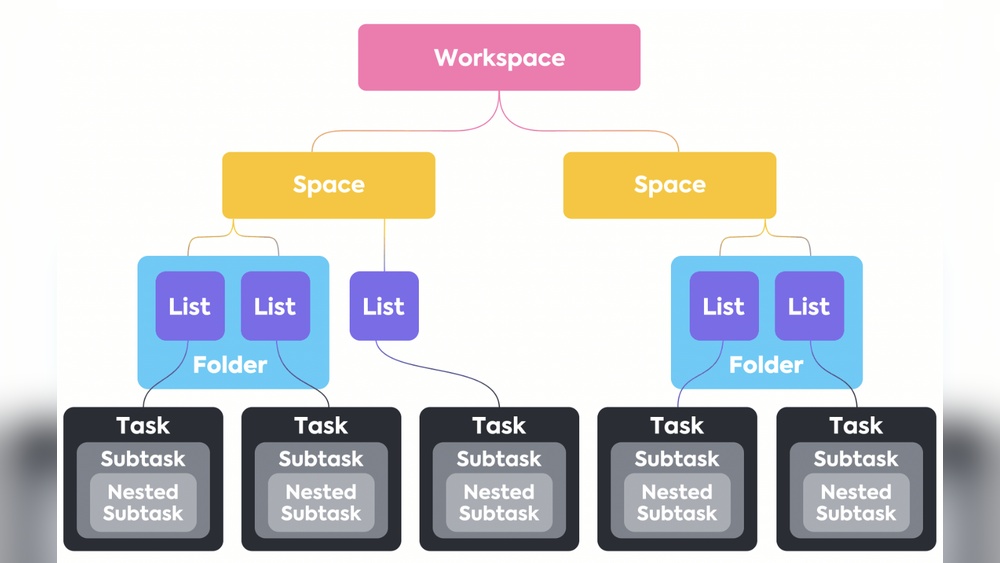
The system organizes work into Spaces, Folders, and Lists, matching team workflows. Admins can customize roles and switch users between Admin and Member as needed.
Purpose Of Differentiating Admins And Members
Differentiating roles improves security and workflow management. Admins hold the highest control to manage settings and users.
Members focus on their tasks and teamwork without worrying about admin duties. This separation keeps work organized and limits accidental changes.
- Admins control billing, permissions, and workspace features.
- Members contribute to projects with the right level of access.
- Clear roles help teams work faster and prevent confusion.
- Custom permissions allow flexibility for different team sizes and needs.
Overall, the role system helps ClickUp users save time and work better together.

Credit: www.youtube.com
Key Features Of Clickup Admin Role
The ClickUp Admin role holds the highest level of access in the workspace. Admins have extensive control over settings, users, and billing. Their responsibilities ensure smooth workspace management and secure collaboration. Understanding these features helps clarify the difference between Admins and Members.
Full Workspace Management And Billing Control
Admins can fully manage the workspace environment. They control billing details and subscription plans. This power lets Admins handle payments and upgrades easily.
- Add, remove, or edit users within the workspace
- Customize workspace settings for team needs
- Monitor and manage billing information
- Ensure workspace stays within budget
This control protects the workspace’s financial and operational health.
Permission Settings And User Role Assignments
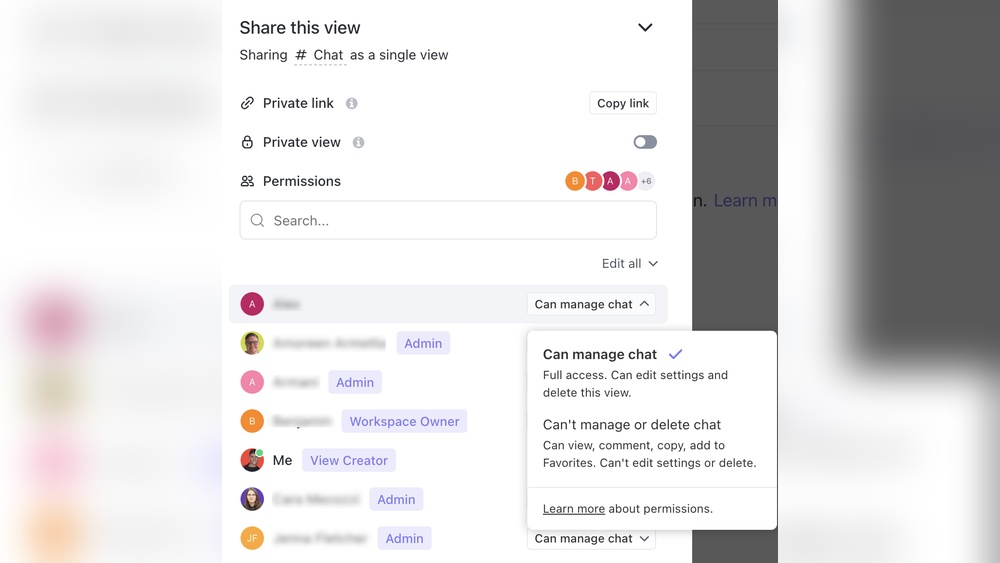
Admins manage permissions and assign roles to users. They decide who can access what parts of the workspace.
| Admin Abilities | Details |
|---|---|
| Set permissions | Control task, folder, and space access levels |
| Assign roles | Convert members to admins or vice versa |
| Manage user access | Restrict or grant user capabilities |
These settings keep data safe and workflows clear for the team.
Access To Advanced Integrations And Administrative Tools
Admins have access to advanced tools that improve workspace functionality.
- Connect third-party apps and integrations
- Use administrative tools to monitor workspace activity
- Customize features to fit team workflows
- Manage automation and system settings
This access helps Admins tailor ClickUp to their organization’s needs and boost productivity.
Key Features Of Clickup Member Role
The ClickUp Member role is designed to empower team collaboration while keeping access secure. Members work within the boundaries set by Admins, focusing on their tasks and projects. This role balances productivity with controlled permissions, making teamwork efficient and organized.
Collaborative Task Management And Project Participation
Members actively participate in task management and project workflows. They can:
- View and update tasks assigned to them or their teams
- Comment on tasks to share ideas and feedback
- Collaborate with other members across multiple projects
- Track progress and deadlines to meet team goals
This role promotes teamwork by allowing members to contribute without administrative distractions.
Limited Access Based On Admin-defined Permissions
Members have restricted access controlled by Admins. This ensures security and clarity. Members cannot:
- Modify workspace settings or billing information
- Change user roles or manage integrations
- Access features outside their assigned projects or tasks
Admins set permissions to tailor what each member can see and do, protecting sensitive information.
Focus On Personal Workspaces And Communication
Members use their personal workspaces to organize tasks and communicate with teammates. Features include:
- Personal dashboards to track individual work
- Direct messaging and comment threads for clear communication
- Notifications to stay updated on task changes
This focus helps members stay productive and connected within their scope of work.
Comparing Admin And Member: Core Differences
Understanding how ClickUp’s user roles affect pricing helps control costs. Admins and Members have different access levels and permissions. This difference impacts subscription plans and budgeting. Managing roles smartly saves money and improves workspace efficiency.
Cost Structures Related To Admin And Member Roles
ClickUp charges based on total users, regardless of role. Both Admins and Members count toward the subscription. However, Admins have more control over workspace settings and billing.
| Role | Access Level | Impact on Cost |
|---|---|---|
| Admin | Full control over billing, permissions, integrations | Included in user count; essential for management |
| Member | Limited access to tasks and projects | Included in user count; no billing control |
Admins do not increase costs differently but carry more responsibility. Members form the bulk of the team, influencing overall pricing.
How Role Assignments Affect Subscription Plans
ClickUp subscription plans scale by the number of active users. Assigning many Admins does not change the plan price but affects workspace security. Too few Admins may slow down management tasks.
- Free Plan: Limited users and features; suitable for small teams.
- Paid Plans: Price grows with user count, regardless of Admin or Member role.
- Role Balance: Optimal Admin-to-Member ratio improves cost-effectiveness and workflow.
Budgeting Tips For Managing User Roles In Clickup
Control expenses by managing user roles carefully. Follow these tips:
- Limit Admins: Assign Admin rights only to essential team members.
- Review Users: Regularly audit active users and remove inactive ones.
- Use Role Conversion: Change roles based on current project needs.
- Choose Plans Wisely: Pick subscription levels matching your team size and feature needs.
Proper role management keeps costs low and workspace secure. It also ensures every user has the right access.
Pricing And Affordability: Role Implications
Understanding the advantages and limitations of ClickUp Admins and Members helps teams work smarter. Each role has distinct functions that affect daily workflow and project success. Real users often share insights that reveal what works best and what challenges arise.
Advantages Of Having Admins In Your Team
Admins hold the highest level of access in ClickUp workspaces. They keep the workspace organized and secure, managing user roles and permissions with ease.
- Full control over billing, integrations, and workspace settings.
- Ability to add, remove, or edit users to keep the team updated.
- Customizes workspace features to fit team needs, improving workflow.
- Ensures security by controlling access and permissions precisely.
Admins act as the backbone, allowing smooth operation and quick problem-solving.
Benefits And Limitations Experienced By Members
Members focus on their tasks without distractions from admin duties. This keeps their work clear and productive.
| Benefits | Limitations |
|---|---|
|
|
Potential Challenges And How To Overcome Them
Role limitations sometimes slow down workflow or cause confusion.
- Delayed access changes: Members wait for Admins to update permissions.
- Overloaded Admins: Admins may become bottlenecks handling all settings and users.
- Communication gaps: Misunderstanding role boundaries may cause task delays.
Steps to solve these challenges:
- Define clear role responsibilities to avoid overlap and confusion.
- Set regular check-ins between Admins and Members to discuss needs.
- Train Members on what they can do and when to ask for help.
- Consider delegating some permissions to trusted Members to reduce Admin load.
Proper role management leads to efficient teamwork and faster task completion.
Pros And Cons Based On Real-world Usage
Understanding when to assign Admin or Member roles in ClickUp is key for smooth team operations. Clear role definitions help teams work faster and avoid confusion. Each role fits specific tasks and responsibilities. Proper assignment improves security and efficiency across projects.
When To Assign Admin Roles For Optimal Management
Admins should be assigned to those who manage workspace settings and oversee user access. Their responsibilities include:
- Managing billing and subscription plans
- Setting permissions and controlling integrations
- Adding or removing users and adjusting roles
- Customizing workspace features and security settings
Assign Admin roles to team members who require full control over the workspace. Limit the number of Admins to reduce risks. Choose trusted, responsible individuals for this role.
Best Scenarios For Member Role Utilization
Members focus on task execution and collaboration within projects. They should:
- Work on assigned tasks and projects
- Communicate with team members on relevant topics
- Access only the areas and information needed for their work
Members do not manage billing or workspace settings. This role suits team contributors who need to focus on daily tasks without administrative duties.
Balancing Roles For Effective Team Dynamics
Balanced role distribution supports teamwork and security. Consider these points:
- Keep Admin roles limited to essential personnel.
- Assign most users as Members to maintain focus on tasks.
- Review and update roles regularly as team needs change.
- Use ClickUp’s customizable permissions to tailor access precisely.
Effective role balance helps avoid bottlenecks and protects sensitive workspace settings. It promotes clear workflows and efficient collaboration.
Recommendations For Ideal Use Cases
Managing user roles in ClickUp is essential for smooth teamwork and secure access control. Assigning the right role—Admin or Member—helps balance control and collaboration. This section explains how to manage and change these roles effectively.
Step-by-step Guide To Assigning Admin And Member Roles
Follow these simple steps to assign or change roles in ClickUp:
- Open ClickUp and log in to your workspace.
- Go to the Manage People page from the workspace settings.
- Find the user whose role you want to change or assign a role to a new user.
- Click on the user’s current role to open the role options.
- Select Admin to grant full workspace control, or Member for task collaboration.
- Confirm the change to update the user’s permissions immediately.
Admins manage billing, settings, and users. Members focus on tasks and projects.
Tips For Maintaining Role Security And Accountability
- Limit Admins: Assign Admin roles only to trusted team members.
- Review Roles Regularly: Check user roles to ensure correct access levels.
- Use Clear Naming: Label projects and tasks to avoid confusion over permissions.
- Monitor Activity: Track changes made by Admins to maintain accountability.
- Train Team: Educate users about their permissions and responsibilities.
These practices help keep your workspace secure and organized.
Utilizing Custom Roles For Advanced Permission Control
ClickUp offers Custom Roles to fit unique team needs. Create roles with tailored permissions beyond Admin and Member levels.
| Custom Role Feature | Benefit |
|---|---|
| Fine-grained permission settings | Control access to specific tasks, lists, or features |
| Role-based task visibility | Limit what users can see and edit |
| Custom role naming | Clearly define responsibilities within the team |
Use custom roles to enhance flexibility and ensure proper access for each team member.
How To Manage And Change Roles In Clickup
Selecting the appropriate role in ClickUp shapes how your team works together. The choice between Admin and Member roles affects security, control, and collaboration.
Understanding these roles helps assign clear responsibilities. Each role fits different team needs and goals. This ensures smooth project management and effective teamwork.
Summary Of Key Differences And Their Impact
| Feature | Admin | Member |
|---|---|---|
| Access Level | Full workspace control, including billing and settings | Limited to assigned tasks and projects |
| User Management | Can add, remove, and edit users | No user management rights |
| Permissions | Can set and change permissions | Permissions set by Admins |
| Focus | Workspace administration and customization | Task collaboration and execution |
Impact: Admins keep the workspace secure and organized. Members concentrate on teamwork and task completion. This balance improves productivity and reduces errors.
Final Thoughts On Role Strategy In Clickup
Assign Admin roles to team members who handle management and settings. Choose Members for those focused on daily tasks and project work.
Keep Admins limited to avoid accidental changes and security risks. More Members mean better collaboration without extra administrative burden.
Roles are flexible. Adjust them as your team grows or changes. This adaptability supports evolving workflows and project demands.
Encouragement For Tailoring Roles To Team Needs
- Analyze your team structure and project complexity.
- Assign roles based on responsibility and access needs.
- Use ClickUp’s customizable permissions for fine control.
- Review roles regularly to keep alignment with team goals.
Proper role assignment empowers your team. It balances control with collaboration, helping each member work effectively.
Tailoring roles to your team’s needs makes ClickUp a powerful tool for project success.
Credit: www.dragapp.com
Frequently Asked Questions
What Is The Difference Between Admin And User?
Admins have full control over settings, permissions, and management. Users have limited access based on admin-granted permissions.
How To Give Admin Access In Clickup?
To give admin access in ClickUp, go to Manage People, click the user role dropdown, and select “Admin” for the user.
What Is The Difference Between Admin And Member In Zoom?
Admins in Zoom manage users, billing, and advanced settings. Members only adjust their personal user settings without admin privileges.
What Is The Clickup Hierarchy?
The ClickUp Hierarchy organizes work into Spaces, Folders, and Lists. Spaces represent teams, Folders hold projects, and Lists track tasks. This structure helps customize workflows and improves project management efficiency.
Conclusion
Choosing between ClickUp Admin and Member roles depends on your needs. Admins control settings, users, and billing. Members focus on tasks and teamwork with limited access. This clear role split keeps work organized and secure. Understanding these roles helps teams work smoothly and avoid confusion. Explore how ClickUp fits your workflow by visiting ClickUp here. Start managing projects with the right access for everyone. Simple, effective, and tailored for your team.