Does Clickup Have Time Tracking: Ultimate Guide to Boost Productivity
Are you wondering if ClickUp has time tracking features to help you manage your work hours more effectively? Whether you’re juggling multiple projects or trying to keep your team’s productivity on point, knowing how much time you spend on tasks can make all the difference.
The good news is, ClickUp offers built-in time tracking tools that let you log hours, set estimates, and even mark billable time—all within one powerful platform. Plus, it integrates smoothly with popular time tracking apps like Harvest and Timely, giving you flexibility and control over your workflow. Ready to save time and stay organized with ClickUp’s time tracking? Check it out here: ClickUp and discover how it can transform the way you work. Keep reading to learn everything you need to know about ClickUp’s time tracking capabilities and how it can fit perfectly into your daily routine.
Introduction To Clickup’s Time Tracking
ClickUp is a versatile project management tool known for combining multiple work apps into one platform. It helps teams organize tasks, communicate, and manage projects with ease. One key feature that many users seek is time tracking. Time tracking helps monitor how much time is spent on tasks and projects. This section explores ClickUp’s time tracking capabilities and its value for productivity.
Overview Of Clickup As A Project Management Tool
ClickUp offers an all-in-one workspace where teams can plan, track, and collaborate. It replaces many separate apps by providing tools for:
- Task management
- Document sharing
- Goal tracking
- Chat and communication
- Time tracking and reporting
Designed to save time and money, ClickUp supports remote and in-office teams. It keeps everyone on the same page with clear workflows and real-time updates.
Purpose And Importance Of Time Tracking In Productivity
Time tracking helps teams understand how work hours are spent. It can improve productivity by:
- Identifying time-consuming tasks
- Helping with project estimates
- Improving task prioritization
- Ensuring accurate billing for clients
- Providing data for performance reviews
Tracking time also encourages focus and accountability. Teams can spot bottlenecks and adjust workflows faster.
Does Clickup Have Built-in Time Tracking?
Yes, ClickUp includes built-in native time tracking. Users can:
- Track time directly on tasks using a stopwatch or manual entry
- Set time estimates for tasks
- Mark time entries as billable for client invoicing
- Add descriptions and tags to time logs
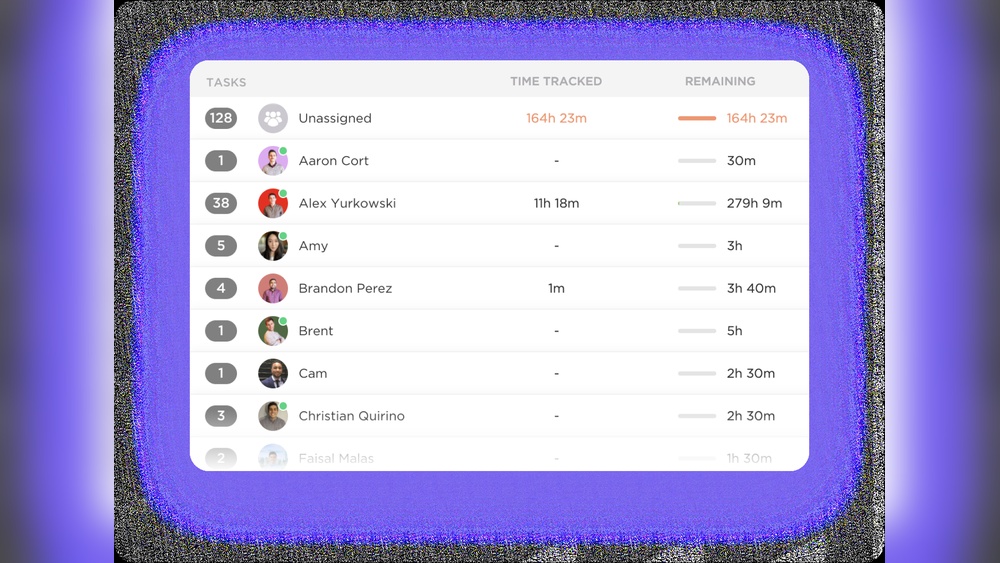
- Generate detailed timesheet reports
To use this feature, owners or admins must enable the Time Tracking ClickApp. ClickUp also integrates with popular time tracking apps like Harvest and Timely for extended options.
| Feature | Description |
|---|---|
| Manual Time Entry | Add time logs without using the timer |
| Stopwatch Timer | Start and stop time tracking in real-time on tasks |
| Billable Time | Mark tracked time as billable for client billing |
| Timesheets | View, edit, and manage all time entries in one place |
| Mobile Tracking | Track time from mobile devices for work on the go |
ClickUp’s time tracking is a flexible solution for teams wanting simple to advanced tracking. It supports project management and billing needs within one platform.
Credit: help.clickup.com
Key Features Of Clickup Time Tracking
ClickUp offers a robust time tracking system to help teams and individuals monitor their work hours precisely. Its features cover various tracking methods, task integration, advanced editing, and comprehensive reporting tools. This system suits simple tracking needs and complex project management alike.
Multiple Time Tracking Methods: Manual Entry, Stopwatch, And Mobile Tracking
ClickUp supports several ways to track time:
- Manual Entry: Add time entries manually for past work or adjustments.
- Stopwatch: Use a built-in timer to start, pause, and stop tracking as you work.
- Mobile Tracking: Track time on the go with ClickUp’s mobile app.
These methods ensure flexibility and accuracy for different work styles and environments.
Time Tracking Within Tasks And Global Timer Functionality
Track time directly inside individual tasks to keep records precise. Each task can have its own timer, capturing exact work periods.
The Global Timer lets users track time across tasks without switching views. It runs in the background, making it easy to log time on multiple projects smoothly.
Advanced Time Tracking Features: Editing, Tagging, And Billable Entries
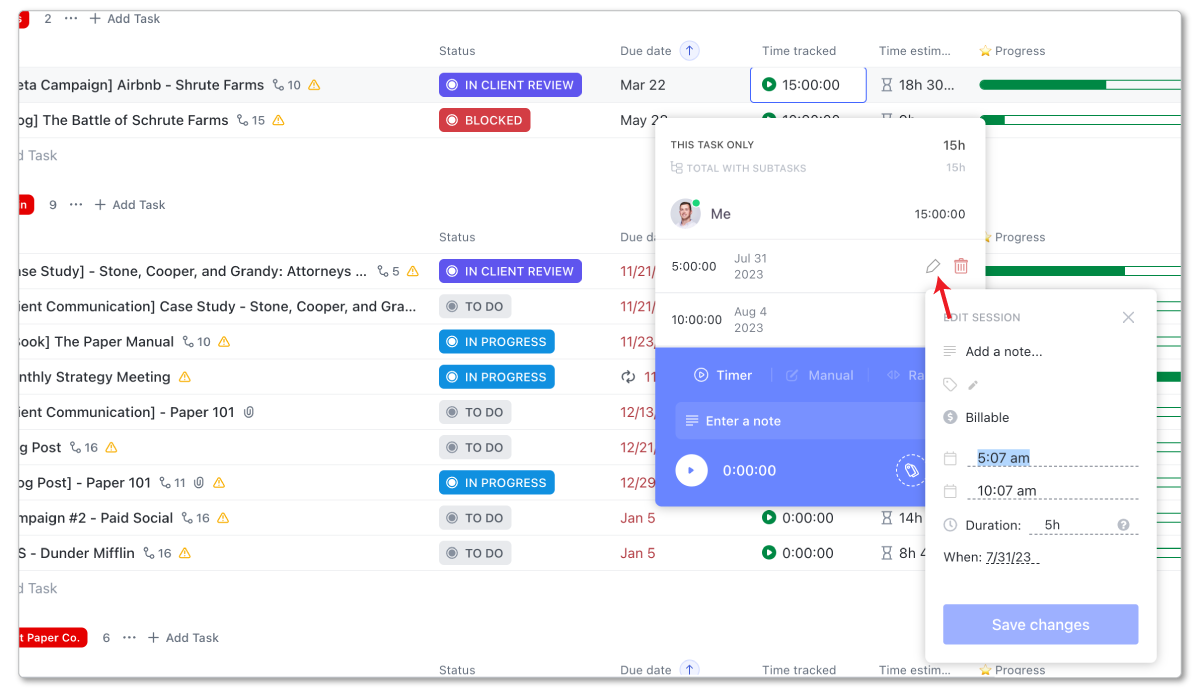
- Edit Time Entries: Modify start/end times or durations for accuracy.
- Add Descriptions and Tags: Attach notes and labels to time entries for better organization and filtering.
- Billable Entries: Mark tracked time as billable, simplifying client invoicing.
These features help keep time data clear and useful for billing and project reviews.
Timesheets Hub: Weekly Timecards And Approvals
The Timesheets Hub compiles all time entries into weekly summaries. Users and managers can review, approve, or adjust these timecards easily.
This system supports workflow transparency and simplifies payroll or billing processes.
Reporting And Dashboard Widgets For Time Analysis
ClickUp offers detailed reports and dashboard widgets to analyze time data. These tools include:
- Visual charts showing time spent by project, user, or task.
- Customizable filters for precise data views.
- Export options for sharing reports with stakeholders.
These features provide insights into productivity and resource allocation.
Integration With Popular Time Tracking Apps Like Harvest, Timely, And Everhour
ClickUp integrates seamlessly with leading time tracking tools:
| App | Purpose | Benefit of Integration |
|---|---|---|
| Harvest | Time tracking and invoicing | Syncs tracked time and billing data automatically |
| Timely | Automatic time tracking | Captures time without manual input for accuracy |
| Everhour | Project time tracking and budgeting | Offers detailed budget tracking linked to tasks |
These integrations expand ClickUp’s time tracking capabilities and fit various workflows.
Pricing And Affordability Of Clickup Time Tracking
ClickUp offers built-in time tracking as part of its productivity platform. Understanding the pricing helps decide which plan fits your budget and needs. This section breaks down the costs and value of ClickUp’s time tracking features.
Cost Overview Of Clickup Plans Supporting Time Tracking
| Plan | Price (Per User/Month) | Time Tracking Availability |
|---|---|---|
| Free | $0 | Basic time tracking with manual entries and stopwatch |
| Unlimited | $5 | Full native time tracking with estimates and reports |
| Business | $12 | Advanced time tracking features and integrations |
| Business Plus | $19 | All Business features plus extra automation |
| Enterprise | Custom Pricing | Custom advanced time tracking and support |
Availability Of Advanced Time Tracking Features Across Plans
Basic time tracking is included in the Free plan. Users can track time using a stopwatch or manual entry.
- Unlimited plan adds features like time estimates and detailed reports.
- Business plan supports advanced options such as editing time entries, adding tags, and marking time as billable.
- Integrations with popular tools like
HarvestandTimelyare available on paid plans. - Timesheets Hub allows managers to review and manage time logs efficiently in Business and above plans.
Value Proposition: Time Tracking Benefits Vs. Pricing
ClickUp’s time tracking offers good value across all pricing tiers.
The Free plan suits freelancers or small teams needing simple tracking.
Paid plans unlock advanced features that improve billing accuracy and team productivity.
Benefits include:
- Easy time logging on tasks to track work hours.
- Ability to mark time as billable for client invoicing.
- Detailed reports for better project management.
- Integration with third-party tools for expanded functionality.
Pricing starts at $5 per user/month for full native time tracking, making it affordable for most businesses. The advanced options in higher plans justify their cost by saving time and improving accuracy.
Pros And Cons Of Clickup’s Time Tracking Based On Real-world Usage
ClickUp offers a built-in time tracking feature that many users find helpful for managing tasks. It supports logging work hours, setting estimates, and marking time as billable. The tool works well for teams needing detailed reports and integrates with popular apps like Harvest and Timely. Yet, some users face limits depending on their subscription plan and a learning curve to use all features smoothly.
Advantages: Versatility, Integration Options, And Comprehensive Reporting
ClickUp’s time tracking is versatile. It supports both manual time entry and stopwatch tracking. Users can track time on desktop or mobile devices. This flexibility fits various work styles and environments.
- Manual and automatic tracking: Log time manually or use a timer.
- Mobile and desktop: Track time anywhere with apps.
- Billable time marking: Mark time entries as billable for client invoicing.
Integration is a strong point. ClickUp connects with popular time tracking apps like Harvest and Timely. This helps teams who already use those tools to keep all data synced.
ClickUp’s reporting tools give clear insights. Users can create timesheets and generate detailed reports to review time spent on projects.
Limitations: Feature Restrictions Based On Plan And Learning Curve
Some features depend on the subscription plan. Basic plans have limited access to advanced time tracking options. For example, editing or deleting time entries may be restricted.
New users may face a learning curve. The interface has many features, which can confuse beginners. Setting up time tracking requires enabling the “Time Tracking ClickApp” by an admin.
| Plan Type | Time Tracking Features Available | Limitations |
|---|---|---|
| Free | Basic manual time tracking | No advanced editing or detailed reporting |
| Paid | Full time tracking, editing, billable marking, reports | None or minimal limits |
User Feedback And Common Challenges
Users appreciate the all-in-one design. Time tracking within the project management tool reduces app switching. Teams value the ability to tag and describe time entries.
Common challenges include:
- Initial setup complexity
- Missing some advanced features without paid plans
- Occasional syncing delays with third-party apps
Overall, ClickUp’s time tracking suits teams wanting integrated work tracking. Users willing to learn the system find it effective for managing hours and budgets.
Who Should Use Clickup Time Tracking?
ClickUp Time Tracking suits a variety of users who need to monitor work hours precisely. Its features meet the demands of freelancers, agencies, and teams working on client projects. The tool helps track time spent on tasks, supporting billing and productivity analysis.
Users benefit from built-in timers, manual time entry, and billable time marking. Integration with popular apps like Harvest and Timely makes it flexible for many workflows.
Ideal Users: Freelancers, Agencies, And Teams Managing Client Deliverables
Freelancers use ClickUp to log hours on different client tasks easily. They can track billable time and generate reports for invoices.
Agencies handle multiple clients and projects. ClickUp helps organize and track time across teams, ensuring accuracy in billing and deadlines.
Teams managing client deliverables use ClickUp to keep all work timed and visible. This transparency supports collaboration and project success.
- Freelancers: Simple task timers and manual entries
- Agencies: Team-wide tracking and reporting
- Teams: Collaborative time management tools
Best Scenarios: Software Implementations, Project Management, And Billable Work
ClickUp time tracking works well in scenarios requiring precise time logging and analysis.
| Scenario | How ClickUp Helps |
|---|---|
| Software Implementations | Track hours spent on development and testing phases. |
| Project Management | Monitor team time on tasks to meet deadlines efficiently. |
| Billable Work | Mark time as billable for accurate client invoicing. |
Recommendations For Maximizing Productivity With Clickup Time Tracking
Enable the Time Tracking ClickApp in ClickUp settings first.
- Set clear time estimates on tasks to compare actual vs. planned time.
- Use timers to track work in real-time for accuracy.
- Add descriptions and tags to time entries for better organization.
- Mark billable time to simplify client billing processes.
- Review timesheets regularly to identify productivity trends and improve workflows.
Integrate with apps like Harvest or Timely for expanded tracking options. Use mobile tracking to log time anywhere.

Credit: clickup.com
How To Get Started With Clickup Time Tracking
ClickUp offers a simple yet powerful time tracking system. It helps teams track work hours directly inside tasks or with a global timer. Setting it up requires just a few steps. This guide explains how to enable time tracking, log hours, use timesheets, and connect third-party tools.
Enabling The Time Tracking Clickapp
Start by activating the Time Tracking ClickApp. Only workspace owners or admins can do this.
- Go to your ClickUp workspace settings.
- Find the ClickApps section.
- Locate Time Tracking and toggle it on.
Once enabled, time tracking features become available on all tasks and lists. This step is essential for logging and managing work hours.
Setting Up Time Tracking On Tasks And Using The Global Timer
Time tracking works two ways in ClickUp:
- On individual tasks: Open a task and click the clock icon to start or stop tracking.
- Global timer: Use the timer in the ClickUp sidebar to track time across different tasks.
You can also manually add time entries if you forget to start the timer. Enter hours, add descriptions, and assign billable status.
Utilizing Timesheets And Generating Reports
ClickUp includes a Timesheets Hub for easy overview of all tracked time.
| Feature | Description |
|---|---|
| View Time Entries | See all logged hours by user, task, or date. |
| Edit Entries | Create, change, or delete time records directly. |
| Generate Reports | Export detailed reports for billing or project analysis. |
Use filters to focus on specific projects or team members. Reports help track productivity and billable hours efficiently.
Integrating Third-party Time Tracking Tools For Enhanced Functionality
ClickUp supports integration with popular apps like Harvest and Timely. These tools add extra features such as:
- Advanced invoicing
- Automatic time capture
- Detailed analytics
To connect:
- Open ClickUp settings.
- Go to Integrations and select the desired tool.
- Follow the on-screen steps to authorize and sync data.
These integrations enhance tracking without leaving ClickUp.
Conclusion: Boosting Productivity With Clickup Time Tracking
ClickUp’s time tracking tool helps teams stay focused and organized. It records time spent on tasks, making work transparent. Users can track manually or use a stopwatch for accuracy. This feature supports better planning and billing.
Tracking time with ClickUp improves task management and helps identify productivity patterns. It also integrates with popular apps like Harvest and Timely for added flexibility. Overall, it simplifies time management and supports efficient project delivery.
Summary Of Benefits And Features
- Built-in native time tracking with manual entry and stopwatch options
- Ability to set time estimates for tasks
- Mark time entries as billable for accurate invoicing
- Add descriptions and tags to time entries for clarity
- Generate detailed timesheets and reports for analysis
- Mobile tracking to log time on the go
- Integrations with popular time tracking apps like Harvest and Timely
Final Thoughts On Using Clickup To Manage Time Effectively
ClickUp’s time tracking is simple yet powerful. It fits well into daily workflows without extra hassle. Users gain clear insights into how time is spent on projects. This clarity helps improve focus and reduce wasted time.
Teams can plan better and meet deadlines with real data. Billing clients becomes easier with accurate, billable time tracking. The tool suits freelancers, small teams, and larger organizations alike.
Next Steps For Readers Interested In Clickup Time Tracking
- Enable the
Time Tracking ClickAppin your ClickUp workspace settings. - Start logging time on your current tasks using manual entry or stopwatch.
- Experiment with adding descriptions, tags, and marking entries as billable.
- Use the timesheets hub to review and analyze tracked time regularly.
- Integrate with apps like Harvest or Timely if you need advanced tracking features.
- Visit ClickUp’s official site for tutorials and support.
Credit: www.zenpilot.com
Frequently Asked Questions
Does Clickup Have A Time Tracker?
Yes, ClickUp offers built-in time tracking with manual entry, stopwatch, billable hours, and integrations like Harvest and Timely.
How Much Does Clickup Time Tracking Cost?
ClickUp time tracking is free with all plans by enabling the Time Tracking ClickApp. Advanced features depend on your subscription level.
What Is Advanced Time Tracking In Clickup?
Advanced time tracking in ClickUp lets users create, edit, and delete time entries, add descriptions and tags, and mark entries as billable for detailed work tracking.
Can Clickup Do Timesheets?
Yes, ClickUp offers native time tracking with timesheets, billable hours, manual entry, and integrations with tools like Harvest and Timely.
Conclusion
ClickUp offers built-in time tracking to help manage your tasks easily. You can track time manually or use a stopwatch within tasks. It also supports integrations with popular apps like Harvest and Timely. Time entries can be marked as billable, with reports available for better tracking. Some features may depend on your plan, but overall, ClickUp covers essential time tracking needs well. To explore ClickUp and its time tracking features, visit ClickUp. This tool helps teams save time and work with clear focus.