Clickup Dashboard Vs Spaces: Ultimate Guide to Boost Productivity
Are you trying to get the most out of ClickUp but find yourself confused between Dashboards and Spaces? You’re not alone.
Understanding how Dashboards and Spaces work—and how they differ—can transform the way you organize your projects, teams, and data. Imagine having a clear, high-level view of your entire workspace, while also breaking down your work into manageable, well-structured areas. That’s exactly what mastering ClickUp Dashboards and Spaces can do for you. You’ll discover the key differences between ClickUp Dashboards and Spaces, how to use each effectively, and which one fits your workflow best. Whether you want to track your team’s progress at a glance or separate your projects by departments, you’ll learn how to make ClickUp work smarter for you. Ready to save time, cut costs, and bring all your work into one place? Check out ClickUp here and see why it’s the AI-powered tool designed to replace all your software and keep your team perfectly in sync. Keep reading to unlock the full potential of ClickUp Dashboards vs Spaces!
Credit: www.zenpilot.com
Introduction To Clickup Dashboards And Spaces
ClickUp offers a powerful way to manage tasks and projects. Two key features, Dashboards and Spaces, help users organize work efficiently. Understanding the difference between these tools boosts productivity and keeps your workflow smooth.
Overview Of Clickup As A Productivity Tool
ClickUp is an all-in-one productivity platform that combines project management, communication, and automation. It helps teams and individuals save time and stay organized.
- Manages tasks, docs, goals, and chat in one place
- Supports collaboration with real-time updates
- Offers customizable views and automation features
- Integrates AI to reduce manual work
ClickUp replaces multiple apps, simplifying daily work and saving money.
Defining Dashboards In Clickup: Purpose And Functionality
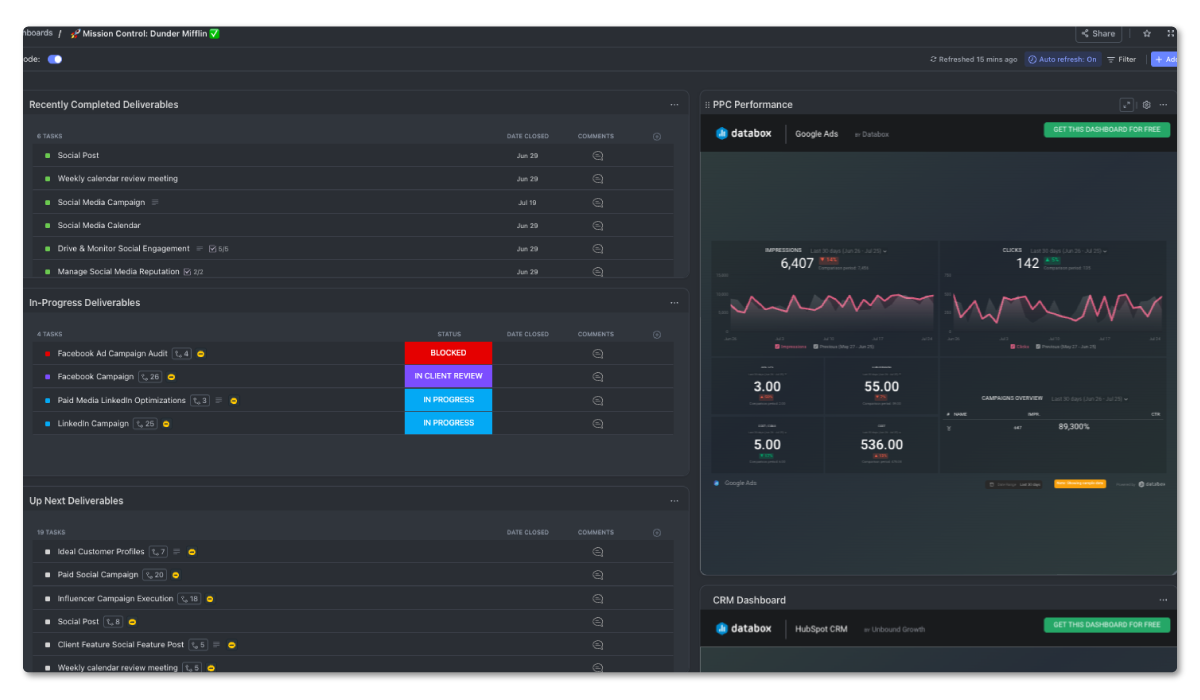
Dashboards provide a high-level overview of your workspace’s data. They collect important information in one place for quick access and decision-making.
- Show project progress and key metrics
- Include customizable widgets like charts, lists, and task statuses
- Allow drill-down to detailed task information
- Help track team performance and deadlines
Dashboards serve as a control center, helping teams focus on what matters most.
Understanding Spaces In Clickup: Organizing Your Workspace
Spaces are the main way to organize your ClickUp workspace. They group related projects, tasks, and teams under one umbrella.
- Each Space represents a department, team, or project area
- Spaces contain folders and lists to further sort work
- Control access and permissions at the Space level
- Keep work organized and easy to find
Spaces create structure and clarity, making large projects manageable.
Key Features Of Clickup Dashboards
ClickUp Dashboards offer a clear and organized way to view your team’s progress and project status. They collect important data into one screen, helping teams stay focused and informed. Users can customize dashboards to match their needs and get fast insights into work performance.
Real-time Data Visualization For Quick Insights
Dashboards show real-time data, updating instantly as tasks move forward. This feature helps teams spot issues or progress without delay. Visual charts and graphs make numbers easier to understand at a glance.
- Live progress bars
- Automatic updates
- Clear visuals like pie charts and line graphs
Customizable Widgets To Track Team And Project Performance
Users can add or remove widgets on dashboards to track what matters most. Widgets are small blocks showing specific information such as task counts, time tracked, or project milestones.
Common widget types include:
- Task lists
- Time tracking summaries
- Goal progress meters
- Team workload charts
This customization allows teams to focus on key metrics and improve work output.
Drill-down Views For Detailed Task And Progress Analysis
Dashboards support drill-down views, enabling users to click on summary cards to see detailed task information. This helps teams analyze specific issues or tasks without leaving the dashboard.
Drill-down features include:
- Viewing individual task details
- Checking due dates and assignees
- Tracking subtask progress
- Examining comments and attachments
Integration Capabilities To Centralize Information
ClickUp Dashboards connect with other tools to centralize information in one place. Integrations bring in data from apps like Google Drive, Slack, and calendars.
Benefits of integrations:
- Access all project info without switching apps
- Keep communication and files linked to tasks
- Save time by automating data updates
Key Features Of Clickup Spaces
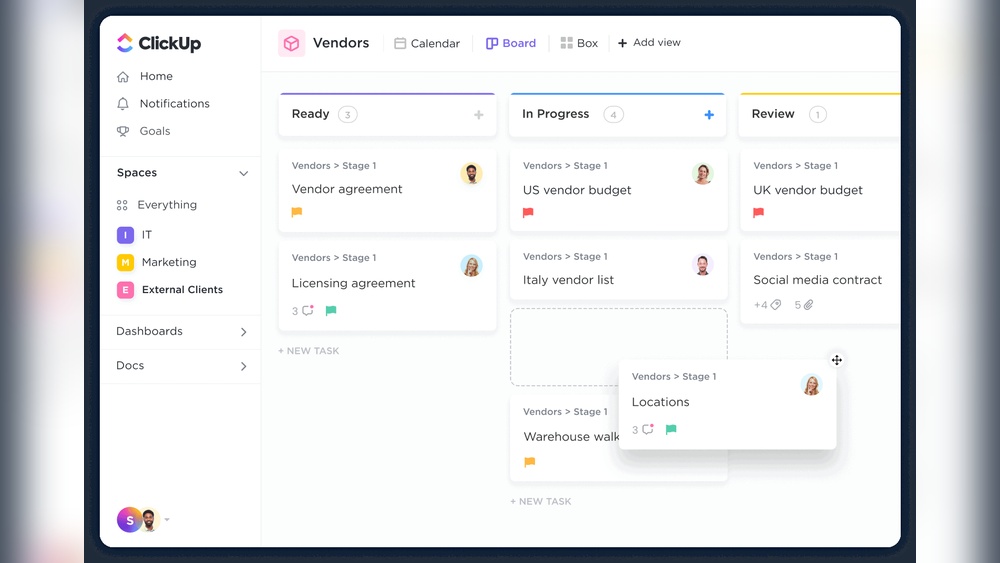
ClickUp Spaces serve as the foundation for organizing your entire workspace. They help divide work by departments, teams, or projects, making it easier to manage large amounts of information. Spaces offer a clear, structured way to group tasks and resources. This structure supports better collaboration and keeps workflows neat and accessible.
High-level Organization By Departments, Teams, Or Initiatives
Spaces allow you to create separate areas for different departments, teams, or initiatives. This separation keeps work focused and relevant for each group.
- Assign each Space to a specific function or goal.
- Keep tasks and projects related to that function in one place.
- Reduce clutter by avoiding mixing unrelated tasks.
This high-level organization helps teams stay aligned and work without confusion.
Facilitating Collaboration Within Specific Groups
Spaces promote teamwork by grouping people who work on the same tasks or projects. Members inside a Space can:
- Share documents and updates easily.
- Communicate directly within the group.
- Track progress on shared goals.
This focused collaboration boosts productivity and ensures everyone knows their role.
Hierarchical Structure: Spaces, Folders, And Lists
ClickUp uses a clear hierarchy to organize work:
- Spaces – The broadest container, grouping related work.
- Folders – Subdivide Spaces into projects or categories.
- Lists – Contain specific tasks within each Folder.
This structure helps break down big projects into smaller, manageable parts.
| Level | Description | Purpose |
|---|---|---|
| Spaces | Top-level areas for teams or departments | Organize broad categories of work |
| Folders | Project or category groups inside Spaces | Divide work into focused areas |
| Lists | Task collections inside Folders | Manage specific tasks and subtasks |
Streamlining Access And Permissions Management
Spaces simplify control over who sees and edits work. You can:
- Set permissions at the Space level.
- Limit access to sensitive projects.
- Assign roles like admin, editor, or viewer.
This control keeps data safe and ensures the right people have the right access.

Credit: www.youtube.com
Pricing And Affordability Breakdown
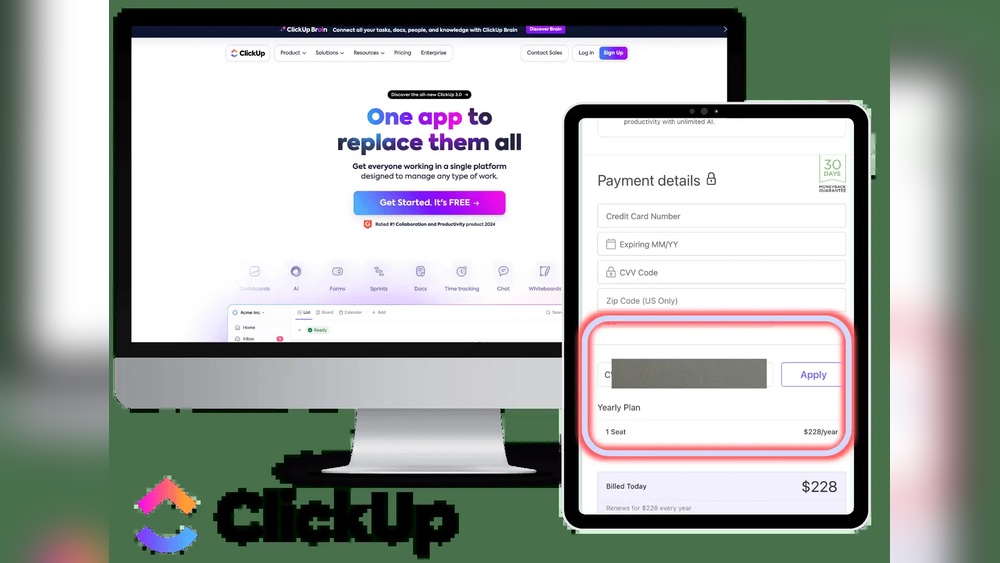
Understanding ClickUp’s pricing helps choose the right plan for your needs. Pricing affects how you use Dashboards and Spaces. This section breaks down the costs and features across plans. It also compares value for small teams and large organizations.
Overview Of Clickup Pricing Plans And What They Include
ClickUp offers several pricing plans to fit different team sizes and needs. The main plans include:
- Free Plan: Basic features with limited storage and users.
- Unlimited Plan: More storage, unlimited users, and advanced features.
- Business Plan: Designed for growing teams with enhanced automation and integrations.
- Enterprise Plan: Custom solutions with advanced security and support.
Each plan provides increasing access to tools like Dashboards and Spaces. Storage and user limits also expand with higher-tier plans.
Feature Availability Of Dashboards And Spaces Across Plans
| Plan | Dashboards | Spaces | User Limit | Storage |
|---|---|---|---|---|
| Free | Limited dashboard widgets | Up to 100MB storage per space | Unlimited | 100MB per space |
| Unlimited | Full dashboards with unlimited widgets | Unlimited spaces | Unlimited | Unlimited |
| Business | Advanced dashboard features | Unlimited spaces with permissions | Unlimited | Unlimited |
| Enterprise | Custom dashboard solutions | Custom spaces and security | Unlimited | Unlimited |
Dashboards gain more customization as plans rise. Spaces become more flexible with advanced plans.
Cost-benefit Analysis For Small Teams Vs. Large Organizations
Small teams often start with the Free Plan. It offers basic Dashboards and Spaces, enough for simple projects.
Growing teams benefit from the Unlimited Plan. It removes limits on storage and widgets. This plan suits teams needing more collaboration tools.
Large organizations should consider the Business or Enterprise Plans. These include:
- Advanced dashboard analytics
- Custom space permissions
- Improved security and support
Higher plans cost more but save time and improve team coordination. Investing in advanced features can reduce reliance on multiple apps.
Pros And Cons Based On Real-world Usage
ClickUp offers two core features for organizing work: Dashboards and Spaces. Each serves different purposes and fits distinct user needs. This section explores their strengths and weaknesses as seen in actual use. Understanding these helps teams pick the right tool for their workflow.
Advantages Of Using Dashboards For Productivity And Decision-making
Dashboards in ClickUp provide a high-level overview of tasks, projects, and key metrics. They gather data from multiple sources into one screen, allowing quick insights and better decisions.
- Centralized Data View: See project progress, deadlines, and workload in one place.
- Customizable Widgets: Add charts, lists, and task summaries tailored to your needs.
- Drill-Down Details: Click dashboard cards to access deeper task information.
- Real-Time Updates: Stay current with live data reflecting ongoing changes.
- Improved Team Alignment: Everyone sees the same status, reducing misunderstandings.
These features boost productivity by minimizing the time spent searching for information.
Limitations And Challenges With Dashboards In Complex Workflows
Dashboards may struggle in very complex workflows with many projects or teams.
- Overcrowding: Too many widgets can clutter the view and reduce clarity.
- Data Overload: Excess information may overwhelm users instead of helping them.
- Limited Interaction: Dashboards are mostly for viewing, not managing tasks directly.
- Plan Restrictions: Some dashboard features depend on ClickUp subscription levels.
Users must balance detail and simplicity for dashboards to remain effective.
Benefits Of Spaces For Structured Organization And Team Management
Spaces act as containers for projects, folders, and tasks. They help teams stay organized and focus on their work areas.
- Clear Hierarchy: Organize work by departments, clients, or project types.
- Access Control: Manage team permissions at the Space level to protect sensitive data.
- Custom Statuses: Tailor task workflows unique to each Space.
- Team Collaboration: Spaces group members who work closely together.
- Consistency: Standardize processes within Spaces for smoother operations.
Spaces simplify team management and maintain order across large projects.
Potential Drawbacks Of Spaces And How To Mitigate Them
Spaces can sometimes create silos or confusion if not managed well.
- Fragmentation: Teams may lose visibility across Spaces, causing communication gaps.
- Complex Setup: Building Spaces with many nested folders requires planning and effort.
- Permission Issues: Incorrect access settings can block necessary collaboration.
Mitigation Tips:
- Define clear naming conventions for Spaces and folders.
- Regularly review and adjust user permissions.
- Encourage cross-Space communication through shared Docs or Chats.
- Train teams on Space structure and best practices.
These actions help maintain a balanced, efficient workspace.
Specific Recommendations For Ideal Users And Scenarios
ClickUp offers two powerful tools for team organization: Dashboards and Spaces. Each serves different purposes and suits various user needs. Understanding which to prioritize can improve team focus and project flow. This section guides on ideal users and scenarios for both features.
When To Prioritize Dashboards For Your Team
Dashboards work best for teams needing a centralized overview of multiple projects or metrics. They display important data visually and help track progress at a glance.
- Project managers requiring quick status updates.
- Teams handling multiple projects simultaneously.
- Users who prefer visual summaries like charts and task widgets.
Dashboards allow real-time monitoring and help spot bottlenecks early. Use them when your team needs one place to view diverse information quickly.
Optimal Use Cases For Spaces In Different Organizational Setups
Spaces organize work by teams, departments, or functions. They provide structure for storing tasks, docs, and projects in dedicated areas.
| Organizational Setup | Best Use of Spaces | Benefits |
|---|---|---|
| Small Teams | One Space for all projects | Simplifies access and collaboration |
| Medium-Large Companies | Separate Spaces per department | Improves focus and data separation |
| Freelancers / Consultants | Spaces by client or project type | Keeps client work organized |
Spaces suit users needing clear boundaries between different work areas. They help maintain order and reduce clutter.
Combining Dashboards And Spaces For Maximum Productivity
Using Dashboards and Spaces together maximizes efficiency. Spaces provide structure; Dashboards offer a snapshot of activity.
- Create Spaces for each team or project group.
- Build Dashboards pulling key data from these Spaces.
- Customize Dashboard widgets to highlight priorities across Spaces.
- Use drill-down views to explore task details inside Spaces.
This combination keeps teams organized while offering quick access to critical insights. It suits teams juggling many projects and departments.
Tips For Beginners: How To Get Started Efficiently
Starting with ClickUp? Follow these simple steps:
- Define your main teams or projects. Create Spaces for each.
- Set up a Dashboard for your daily overview.
- Add widgets that display your most important tasks and goals.
- Train your team to use Spaces for organizing and Dashboards for tracking.
- Start small. Expand your Dashboards and Spaces as your team grows.
Clear organization from the start saves time and keeps everyone on the same page.
Conclusion: Choosing Between Clickup Dashboards And Spaces
ClickUp offers both Dashboards and Spaces as core features to organize and manage work effectively. Choosing the right tool depends on your team’s needs and how you want to view or structure your projects.
Dashboards provide a consolidated, visual overview of key data and project metrics. Spaces act as broad containers for organizing multiple projects, lists, and workflows. Understanding their distinct purposes helps to use ClickUp more efficiently.
Summary Of Key Differences And Complementary Roles
| Feature | Dashboards | Spaces |
|---|---|---|
| Purpose | Visualize data and track progress with widgets and charts | Organize projects, tasks, and teams into distinct areas |
| Scope | High-level overview across projects or teams | Broad grouping of related projects and workflows |
| Usage | Monitor key metrics, deadlines, and resources in one place | Structure work by departments, clients, or business functions |
| Customization | Flexible widgets, charts, and reports for tailored views | Customizable with folders, lists, and task statuses |
| Collaboration | Share insights easily with team members | Manage team permissions and task assignments |
Both features serve complementary roles. Use Spaces to organize your work structure. Use Dashboards to keep track of progress and important data visually.
Final Advice On Boosting Productivity With Clickup Features
- Start with Spaces: Create Spaces that match your team’s functions or projects.
- Build Dashboards: Use dashboards to gather key metrics and project updates.
- Combine Both: Link dashboards to relevant Spaces for quick access to insights.
- Use Widgets: Add task lists, charts, and goals widgets to your dashboards.
- Set Permissions: Control who can see or edit Spaces and Dashboards for better security.
- Review Regularly: Update dashboards and Spaces often to reflect current priorities.
Leveraging both Dashboards and Spaces helps teams stay organized and focused. This approach saves time and improves collaboration by providing clear structure and real-time data views.

Credit: databox.com
Frequently Asked Questions
What Is A Dashboard In Clickup?
A dashboard in ClickUp displays key project data in one place. It helps track progress, time, and performance efficiently. Users customize dashboards with widgets for quick insights and detailed views. Dashboards enhance team collaboration by centralizing important metrics and updates.
Are Dashboards Outdated?
Dashboards are not outdated; they evolve as dynamic tools linking human decisions with real-time data and automation.
What Is The Difference Between A Dashboard And A Workspace?
A workspace organizes all your projects and teams at a high level. A dashboard displays specific data and metrics from those projects for quick insights.
What Are Spaces Used For In Clickup?
Spaces in ClickUp organize your Workspace by departments, teams, projects, or high-level groups. They help structure tasks and streamline collaboration.
Conclusion
Choosing between ClickUp Dashboards and Spaces depends on your needs. Dashboards give a quick, clear view of project data. Spaces organize your work into teams or departments. Both help teams stay on track and focused. Explore how each feature fits your workflow. Try clickup to see which suits you best. Simple tools can improve teamwork and save time. Start managing tasks in a way that feels right for you.